You spent hours customizing your Showit template tweaking fonts, adjusting colors, uploading your brand photography. But when you hit “publish,” something felt off. Your website looks good, but it doesn’t look different. It doesn’t have that “wow” factor that makes visitors stop scrolling and start booking.
Here’s the uncomfortable truth: Showit’s drag-and-drop builder is incredibly powerful, but without custom code, you’re designing with one hand tied behind your back. You can’t add before/after image sliders to showcase your photography editing skills.
You can’t create interactive price calculators that let clients build their dream package. You can’t even add a simple dropdown menu to organize your services.
But what if you could unlock Netflix-style animations, interactive galleries, and conversion-boosting tools—without hiring a $5,000 developer or learning to code from scratch?
That’s exactly what this guide delivers.
What You’ll Learn in This Comprehensive Showit Code Snippets Guide
Over the next sections, you’re getting the complete playbook to transform your Showit website from template-standard to industry-leading. This isn’t just a list of code snippets—it’s a strategic framework for choosing, installing, and leveraging custom code to achieve specific business goals.
Here’s what’s inside:
- 21 battle-tested custom code snippets organized by business function (not just alphabetically listed)
- 6 completely free codes you can download and install today—zero investment required
- Real business use cases for every snippet, so you know exactly when and why to use each one
- Difficulty ratings and installation time estimates so you can plan your implementation
- Mobile responsiveness notes because 60% of your traffic is probably on phones
- SEO and performance insights to ensure code doesn’t hurt your Google rankings
As the team behind Get Perfect Website, we’ve installed these exact snippets on 200+ Showit sites for wedding photographers, planners, coaches, and creative entrepreneurs. We’ve seen firsthand which codes move the needle—and which ones are just flashy distractions.
Who This Guide Is For (And Who It’s Not For)
This guide is perfect if you’re:
- A wedding photographer who needs to showcase editing skills with before/after comparisons
- An event planner selling tiered packages who needs an interactive price calculator
- A coach launching time-sensitive offers who needs countdown timers
- Any creative business owner who wants your Showit site to stand out from the competition
This guide is NOT for you if:
- You’re happy with a basic template site (totally fine!)
- You want someone else to do everything for you (check our VIP Design Day service instead)
- You need complex database functionality (Showit has limitations—we’ll be honest about them)
How to Navigate This Guide
We’ve organized all 21 snippets into logical categories based on what they help you achieve:
- Free Starter Pack (6 codes) – Test custom code risk-free
- Portfolio & Visual Showcase (6 codes) – For photographers and visual creatives
- Navigation & User Experience (4 codes) – Make your site feel professional
- Business Conversion Tools (5 codes) – Turn browsers into buyers
Each snippet includes:
- 🟢 Beginner | 🟡 Intermediate | 🔴 Advanced difficulty rating
- What it does and why it matters
- Specific business scenarios where it shines
- Installation time estimate
- Mobile compatibility notes
Ready to break through Showit’s design limits? Let’s dive in.
Part I: Free Starter Pack – 6 Essential Showit Code Snippets
Before you invest a single dollar in premium codes, start here. These six free snippets solve common Showit limitations and give you hands-on experience with custom code installation. Think of this as your risk-free testing ground.
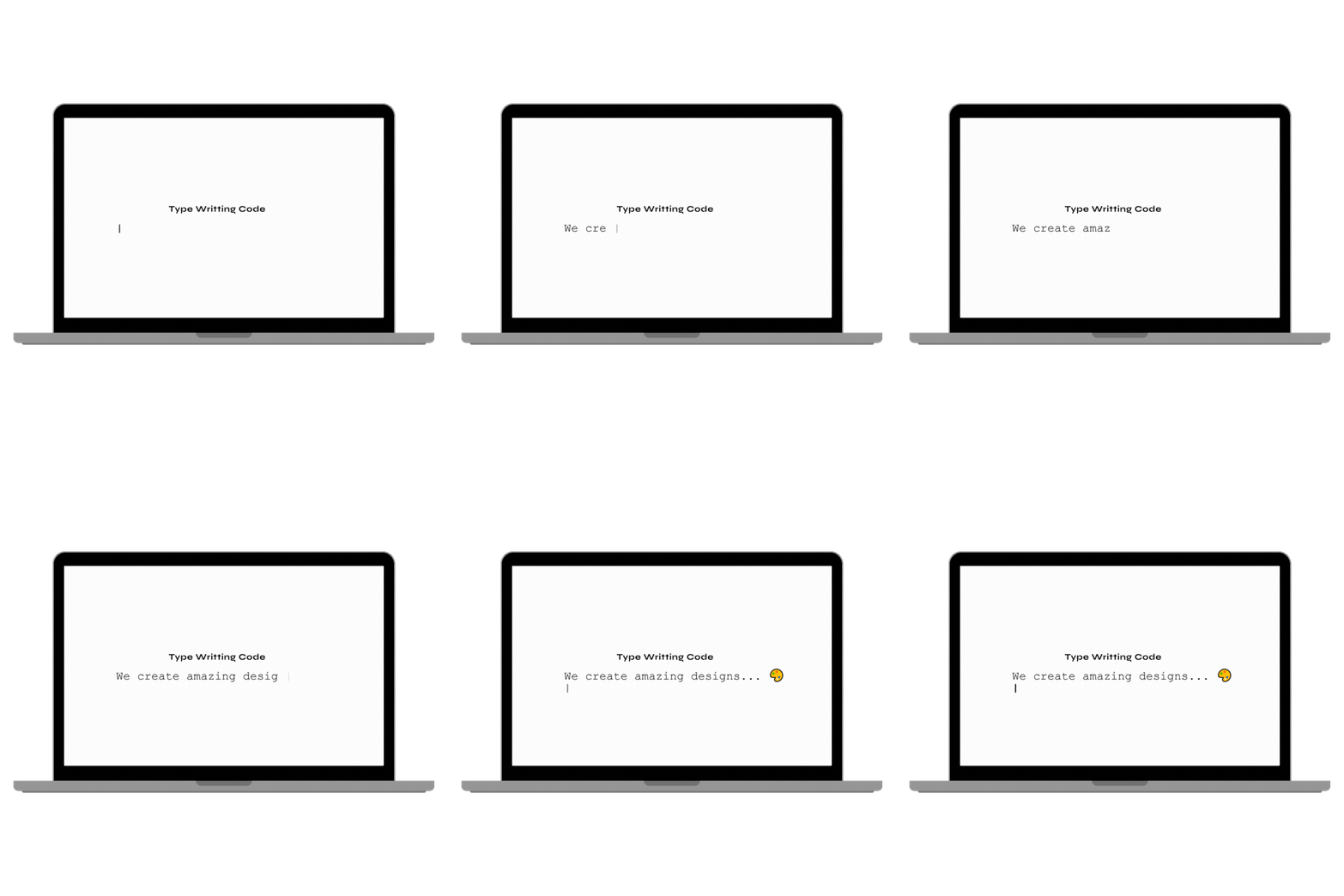
1. Typewriter Text Effect 🆓 🟢
What it does:
Creates an animated typing effect where text appears letter-by-letter, deletes itself, and replaces with new text in a continuous loop. You can customize the typing speed, add a blinking cursor, and rotate through multiple phrases.
Why you need it:
Static headlines are invisible. Animated headlines demand attention. When someone lands on your homepage and sees “I help [typing animation: overwhelmed entrepreneurs | burned-out creatives | busy parents] reclaim their time,” their brain does a double-take. That cognitive interrupt is the difference between a bounce and a booking inquiry.
Perfect for:
- Coaches and consultants who serve multiple niches but want one compelling headline
- Service providers with rotating specialties (wedding photographer who also does portraits, families, and personal branding)
- Anyone who wants their hero section to feel dynamic instead of static
Real business scenario:
Sarah, a brand photographer, was losing potential clients because visitors didn’t realize she photographed both corporate headshots AND creative entrepreneurs. By adding a typewriter effect to her headline—”Photographer for [professionals | creatives | founders]”—she immediately communicated her range. Session time increased by 34% because visitors explored more pages.
Installation time: 5 minutes
Mobile responsive: Yes, works perfectly on all devices
Get the Typewriter Text Effect code →
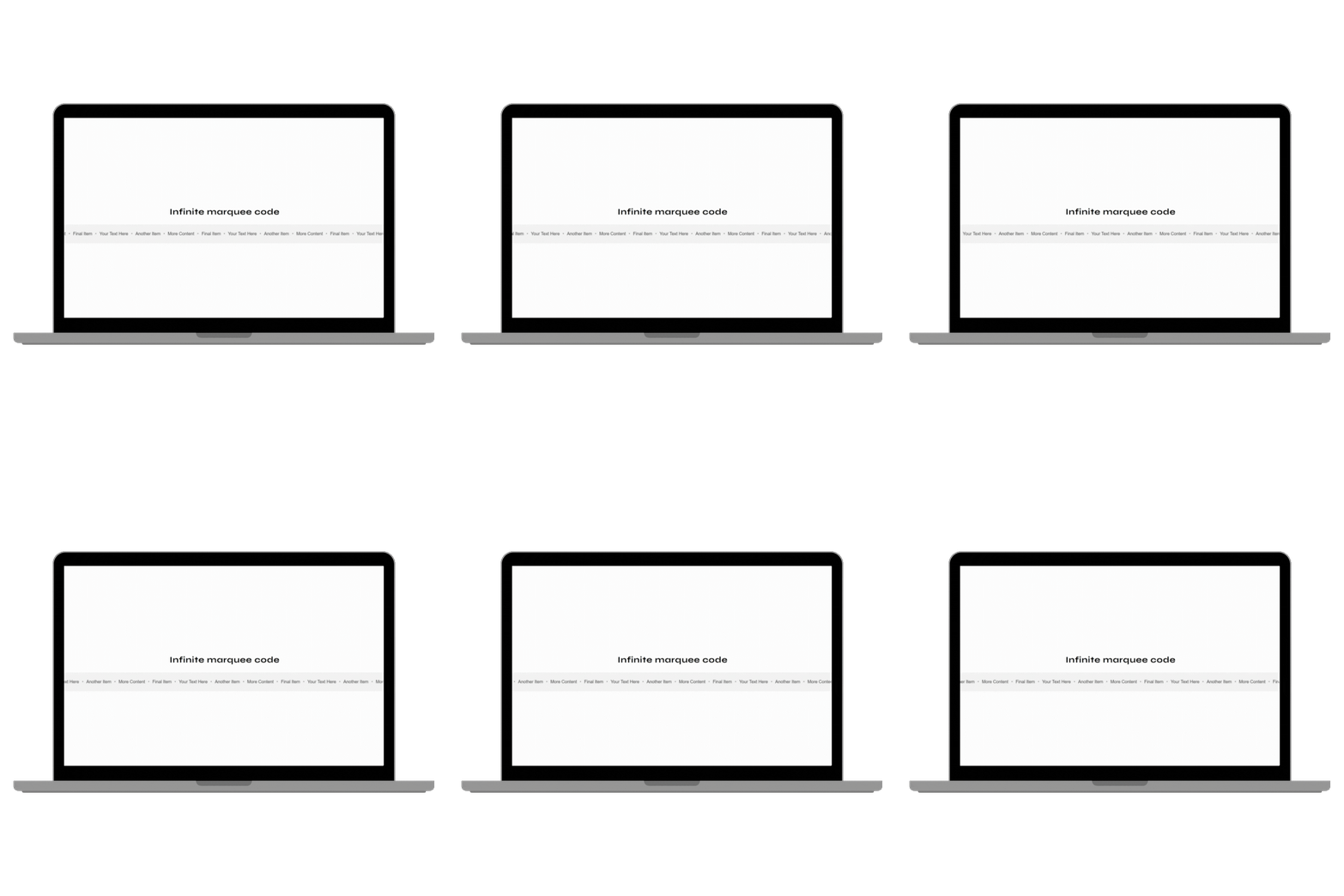
2. Infinite Text Marquee 🆓 🟢
What it does:
Creates a seamless, continuously scrolling text strip that loops infinitely. You control the speed, direction (left-to-right or right-to-left), and can customize fonts and colors to match your brand.
Why you need it:
Horizontal scrolling text is having a major design moment in 2025—you’ll see it on Apple, Nike, and other premium brands. It’s perfect for highlighting services, testimonials, or partner logos without taking up valuable vertical space. Plus, the subtle motion creates visual interest without being distracting.
Perfect for:
- Showcasing client testimonial snippets (“Best photographer ever! – Sarah” scrolling continuously)
- Listing all your services in a compact, eye-catching way
- Displaying “As Seen In” media logos or certification badges
Real business scenario:
A wedding planner was struggling to communicate her full service range above the fold. Her services list (full planning, partial planning, month-of coordination, destination weddings, rehearsal dinner planning) was taking 4-5 lines of precious hero section real estate. By converting to a text marquee, she freed up space for a stronger CTA while actually improving service visibility. Bounce rate dropped by 18%.
Installation time: 3 minutes
Mobile responsive: Yes, adjusts speed automatically on smaller screens
Download the Text Marquee Animation code →
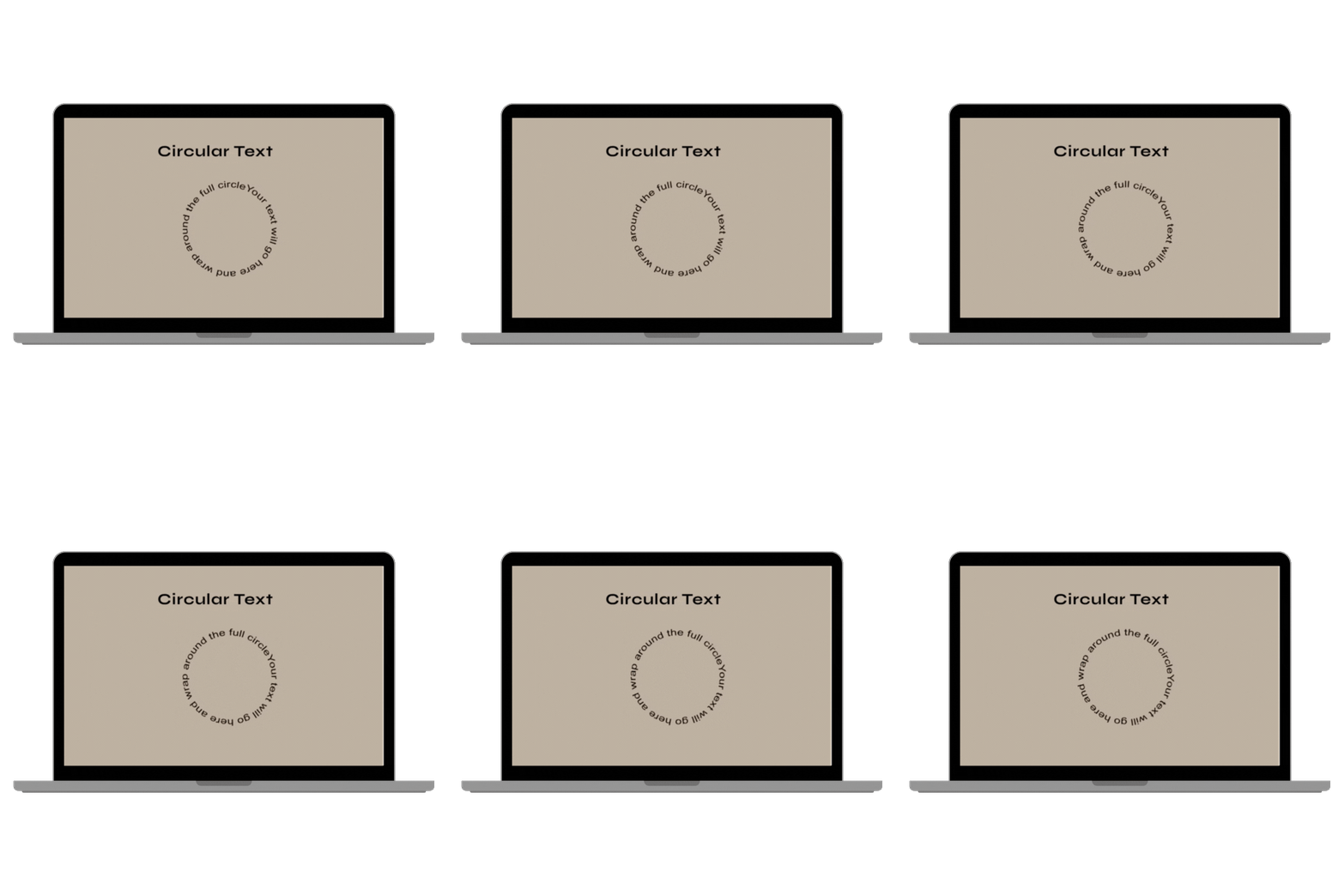
3. Spinning Text / Circle Text 🆓 🟢
What it does:
Makes text rotate in a perfect circle (360° continuous animation). You can control rotation speed, text content, font styling, and circle diameter. It’s eye-catching without being obnoxious.
Why you need it:
Movement attracts the human eye—it’s evolutionary biology. Spinning circle text around a CTA button or special badge creates a focal point that draws attention exactly where you want it. Think of it as a visual highlighter that never stops working.
Perfect for:
- Creating urgency around CTAs (“Book Now • Limited Spots • Book Now” circling your button)
- Highlighting seasonal offers or limited-time promotions
- Adding kinetic energy to otherwise static sections
Real business scenario:
A luxury photographer wanted to emphasize her exclusive availability (“Only 10 weddings per year”) without using aggressive scarcity tactics. She added spinning circle text reading “Limited Availability • Book 2026 Now” around a circular badge on her homepage. The subtle but constant motion directed eyes to her booking CTA without feeling pushy. Inquiry form completions increased 23%.
Installation time: 5 minutes
Mobile responsive: Yes, scales proportionally
4. Animated Text Underline 🆓 🟢

What it does:
Adds interactive hover effects to text with five different animation styles: grow from left-to-right, grow from center, wavy underline, underline that transforms into highlight, or half-to-full highlight. Pure CSS means lightning-fast loading.
Why you need it:
Your navigation menu is one of the first things visitors interact with. The difference between a static menu and one with smooth hover animations is the difference between “homemade template” and “professionally designed site.” It’s a subtle polish that signals quality.
Perfect for:
- Navigation menus (makes them feel premium and interactive)
- In-text links throughout your site content
- Service page headers or portfolio category titles
Real business scenario:
A wedding planner’s site looked good but felt “cheap” to visitors—she was getting price-shopper inquiries instead of quality leads. After implementing animated underlines throughout her navigation and in-text links, the site felt more polished. Average project inquiry value increased from $4,200 to $6,800. Small detail, big impact.
Installation time: 2 minutes
Mobile responsive: No hover on mobile, but links remain fully functional
Download Animated Text Underline code →
5. Number Counting Effect 🆓 🟡
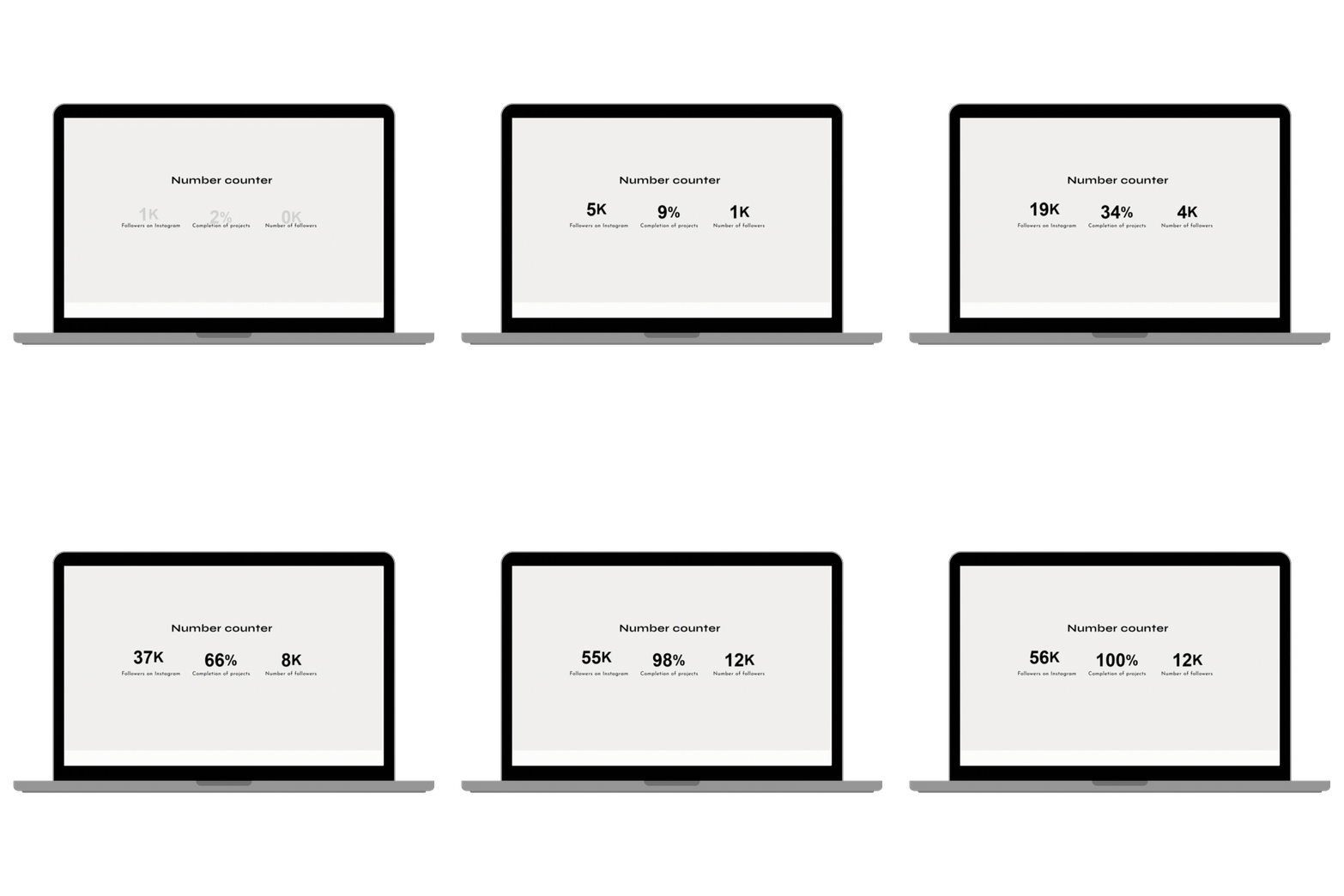
What it does:
Animates numbers from zero to your target value when the section scrolls into view. Supports prefixes and suffixes like $, %, K, + and lets you control animation speed and easing.
Why you need it:
Static statistics are forgettable. Animated statistics are memorable. When someone sees “500+” count up from zero in real-time, it creates a micro-moment of surprise that cements that number in their memory. It’s the difference between scrolling past your credentials and actually absorbing them.
Perfect for:
- Showcasing years in business, happy clients, projects completed
- Highlighting impressive metrics ($2M+ in client bookings, 500+ five-star reviews)
- About page credibility builders
Real business scenario:
A brand photographer had impressive stats (8 years in business, 300+ clients, 95% referral rate) buried in paragraph text on her About page. After converting these to animated counting numbers with a clean visual layout, average time on About page tripled from 28 seconds to 1 minute 42 seconds. More importantly, she started hearing “I saw you’ve photographed 300+ brands” in discovery calls—the stats were finally being absorbed.
Installation time: 10 minutes (requires proper HTML structure)
Mobile responsive: Yes, triggers on mobile scroll
Get the Number Counting Effect code →
6. Blog Social Share Button 🆓 🟢
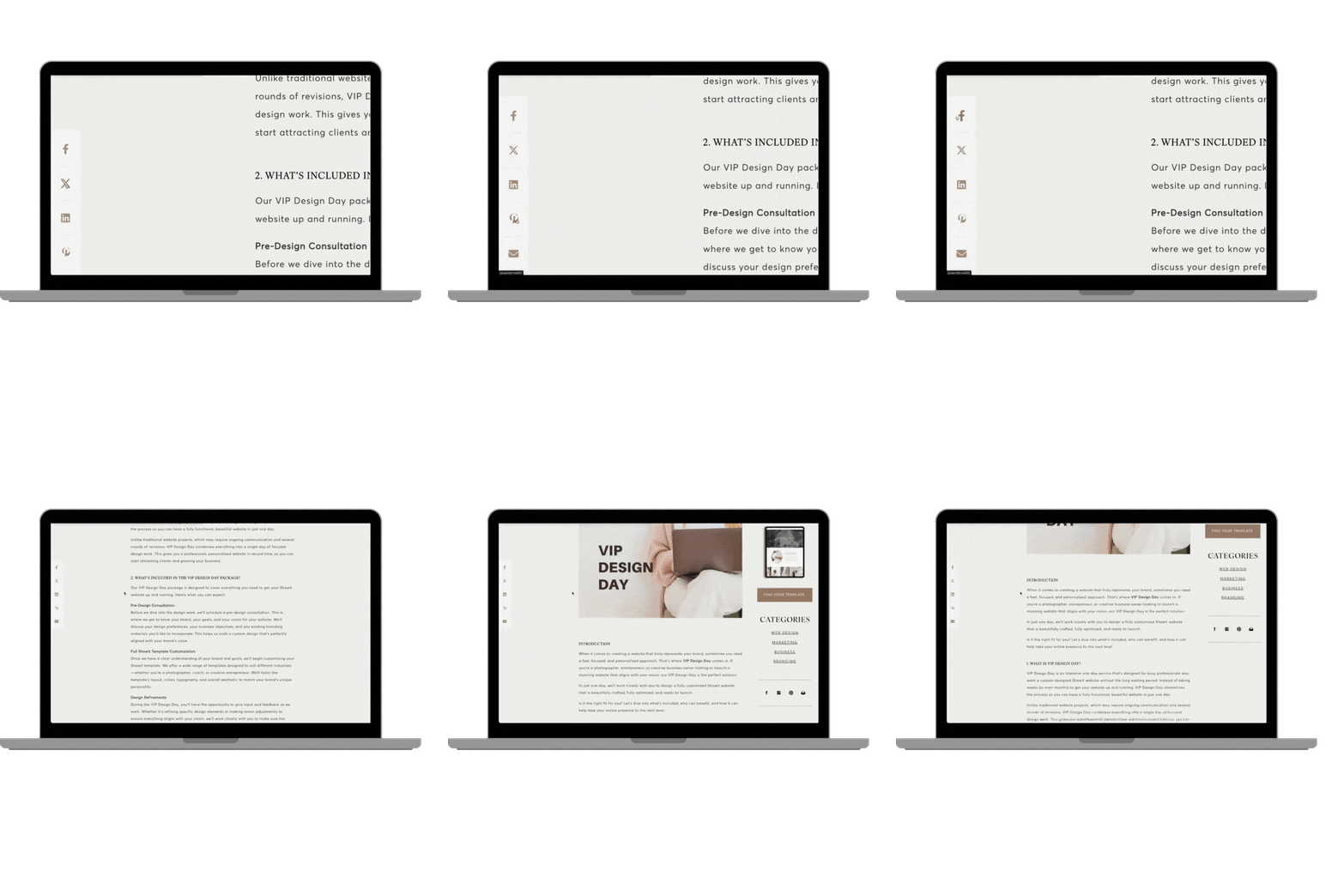
What it does:
Adds one-click social sharing buttons to your Showit blog posts for Facebook, Pinterest, Twitter, and LinkedIn. Buttons can be sticky (follow user as they scroll) or inline, and automatically populate with your post title and URL.
Why you need it:
Every blog share is a free backlink and potential new visitor. Pinterest alone drives 33% of all social media referral traffic to websites. By making sharing effortless, you’re essentially deputizing your readers as your marketing team.
Perfect for:
- Wedding industry pros (huge Pinterest opportunity)
- Anyone creating educational or inspirational blog content
- Tutorial-style posts that people naturally want to save
Real business scenario:
A wedding planner writing venue guides saw decent blog traffic but zero social amplification. After adding Pinterest and Facebook share buttons to every post, her best-performing article (“15 Hidden Gem Wedding Venues in [City]”) was shared 127 times, generating 1,800 new visitors and 12 qualified inquiries—from a single blog post. All because she made sharing frictionless.
Installation time: 5 minutes
Mobile responsive: Yes, buttons optimize for touch
Download Blog Social Share Button code →
Get All 6 Free Codes: Ready to start transforming your Showit site? Visit our free code snippet collection and download all six codes plus installation guides. No email required, no credit card—just instant access.
Part II: Portfolio & Visual Showcase Codes
If you’re a photographer, designer, or any visual creative, these codes are your secret weapons. They transform static image galleries into interactive experiences that showcase your work in ways Showit’s native tools simply can’t match.
7. Before & After Image Slider (Standard) 🟡
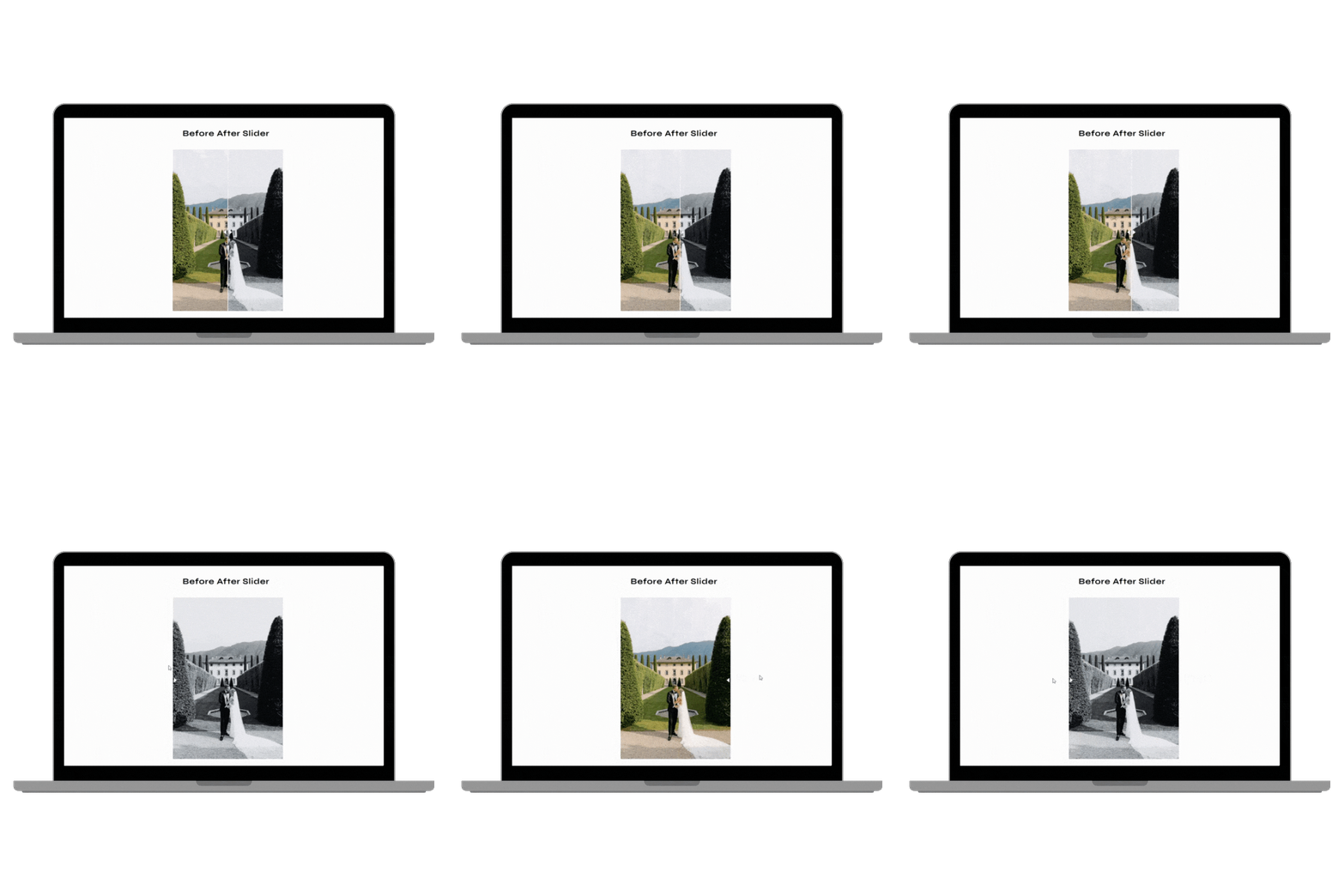
What it does:
Creates a draggable comparison slider between two images. Visitors drag the divider handle left or right to reveal more of the “before” or “after” image. Fully touch-friendly on mobile devices.
Why you need it:
For photographers, this is the ultimate proof of skill. Showing a RAW camera file next to your edited final image instantly demonstrates the value you bring. For interior designers, renovators, or anyone whose work involves transformation, it’s visual storytelling gold.
Perfect for:
- Wedding/portrait photographers proving editing expertise
- Interior designers showcasing renovations
- Web designers showing before/after website redesigns
- Makeup artists, personal trainers, or anyone in the transformation business
Real business scenario:
Emma, a wedding photographer, was losing bookings to competitors with lower prices. Clients didn’t understand why her packages cost $2,000 more. She added before/after sliders to her homepage showing RAW files transformed into magazine-worthy finals. Suddenly, the value clicked. Her closing rate on discovery calls jumped from 32% to 67%, and price objections nearly disappeared. The slider paid for itself 50x over in the first month.
Installation time: 15 minutes
Mobile responsive: Yes, optimized for touch swipe
Price: ~$49
Get the Before/After Slider code →
8. Before & After Slider with Thumbnails 🔴
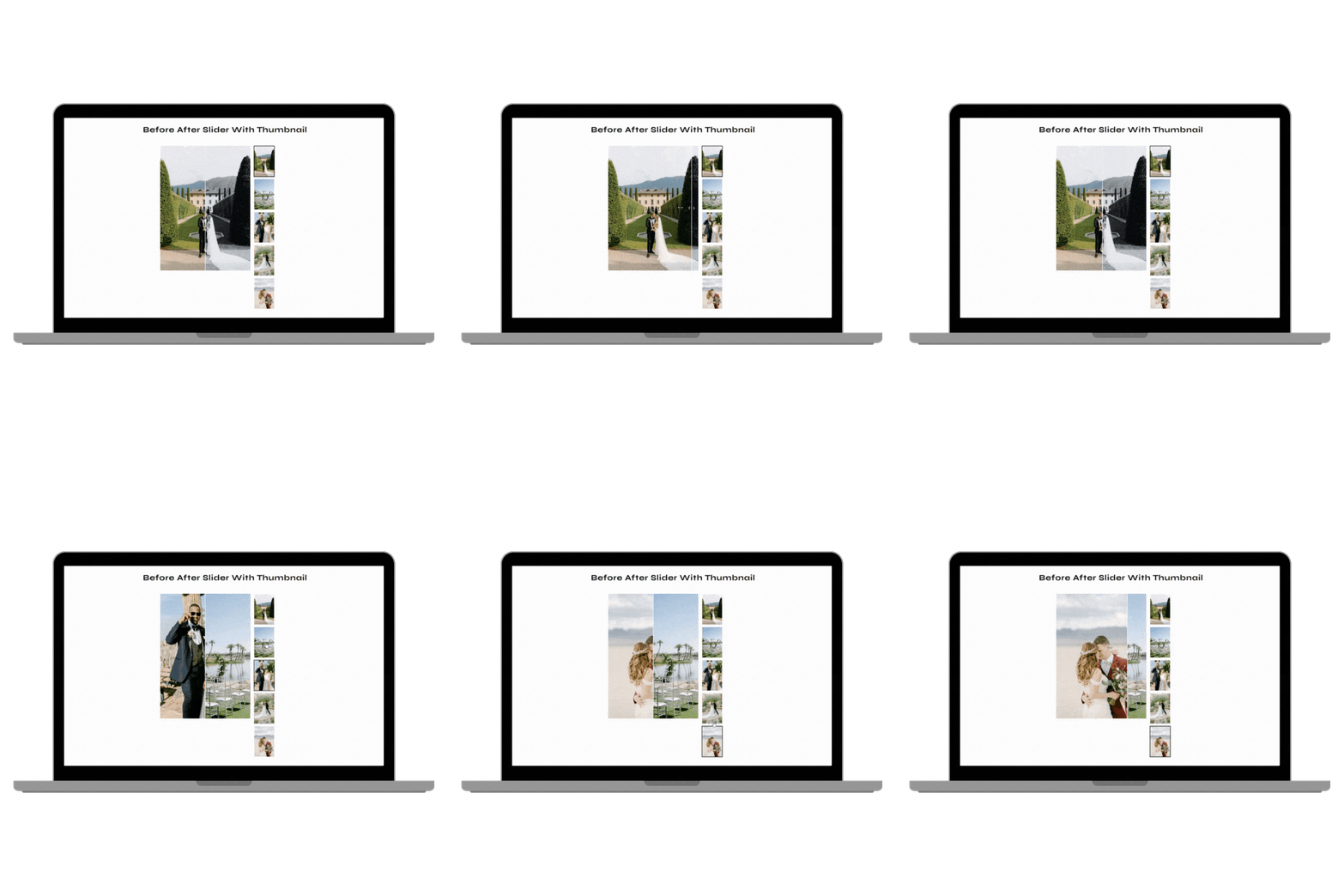
What it does:
An advanced version of the standard slider that includes thumbnail navigation. Showcase multiple before/after comparisons in one space—visitors click thumbnails to switch between different transformations. Includes optional lightbox expansion.
Why you need it:
One before/after comparison is powerful. Five before/after comparisons in an interactive gallery is a portfolio on steroids. Perfect for businesses where variety matters—you want to show kitchen remodels, AND bathroom remodels, AND living room transformations without cluttering your page.
Perfect for:
- Interior designers with diverse portfolios
- Renovation contractors showcasing multiple projects
- Photographers with different editing styles
- Any transformation business with varied work
Real business scenario:
A kitchen remodeling company was struggling with bounce rates—visitors would see one before/after, then leave to check competitors. By implementing a thumbnail slider featuring 8 different kitchen transformations, average session time increased from 52 seconds to 3 minutes 47 seconds. More importantly, visitors were seeing the company’s range (modern, traditional, farmhouse, luxury) which led to more qualified inquiries.
Installation time: 30-45 minutes (complex canvas structure)
Mobile responsive: Yes, thumbnails stack vertically
Price: ~$99
Get the Advanced Before/After Slider →
9. Image Marquee (Infinite Scroll) 🟢
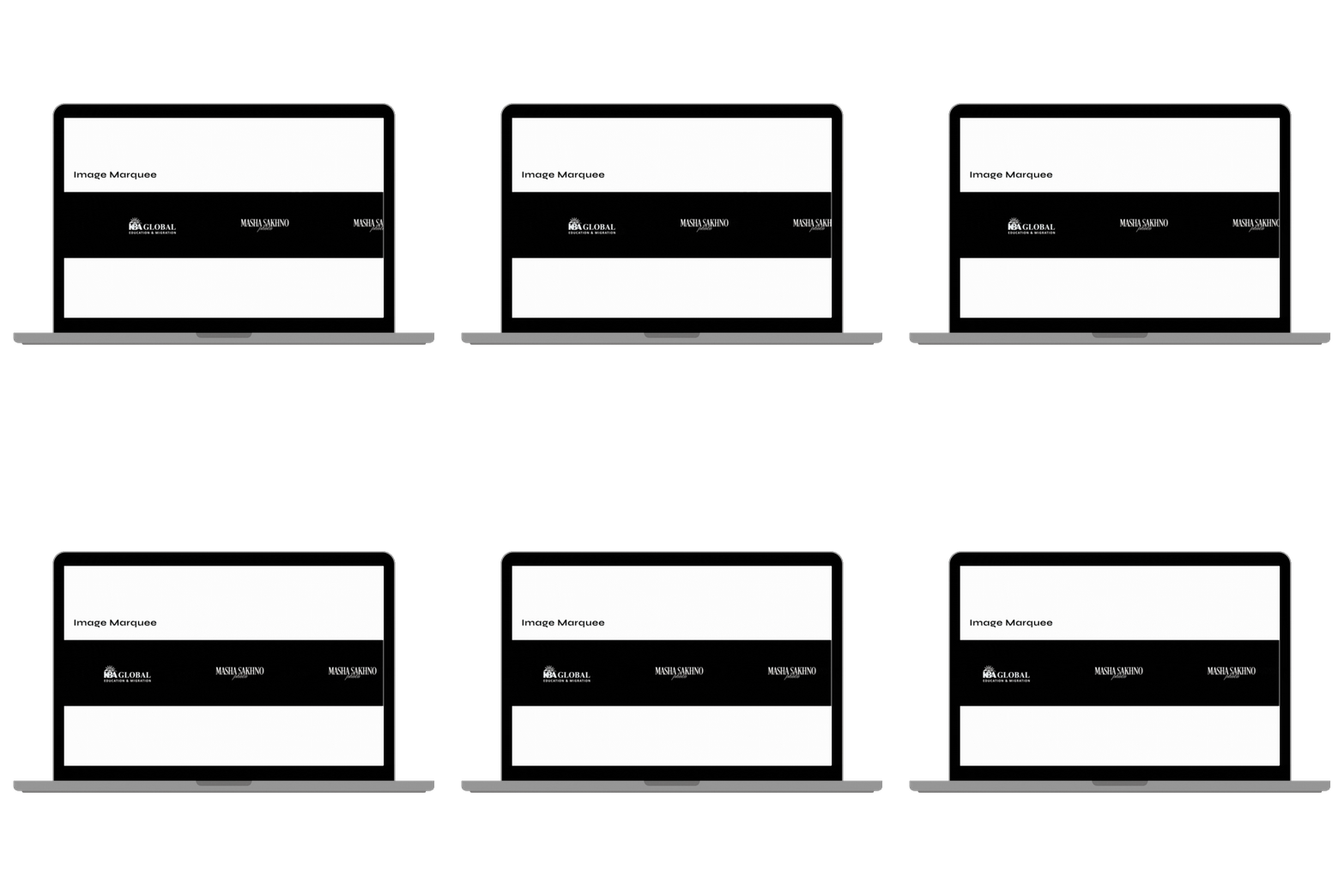
What it does:
Creates a continuous horizontal carousel of images that loops infinitely. Includes hover-to-pause functionality so visitors can examine individual images. Supports logos, portfolio thumbnails, Instagram feeds, or any image set.
Why you need it:
The “As Seen In” section is credibility gold, but listing 15 media logos vertically wastes space. An image marquee displays 2-3x more logos in a compact, visually interesting format. Same goes for showcasing client brands, venue partnerships, or Instagram highlights.
Perfect for:
- “As Seen In” media logo displays
- Event planners showing venue partnerships
- Service providers displaying client brand logos
- Creatives showcasing Instagram content feeds
Real business scenario:
A luxury wedding planner had partnerships with 28 premium venues—a huge competitive advantage. But listing them took up half her homepage. She converted to an image marquee showing all 28 venue logos in a sleek scrolling strip. Not only did this free up 700+ pixels of vertical space, but venue coordinators started noticing their logos and sending more referrals. The visibility actually strengthened her partnerships.
Installation time: 10 minutes
Mobile responsive: Yes, auto-adjusts scroll speed
Price: ~$29
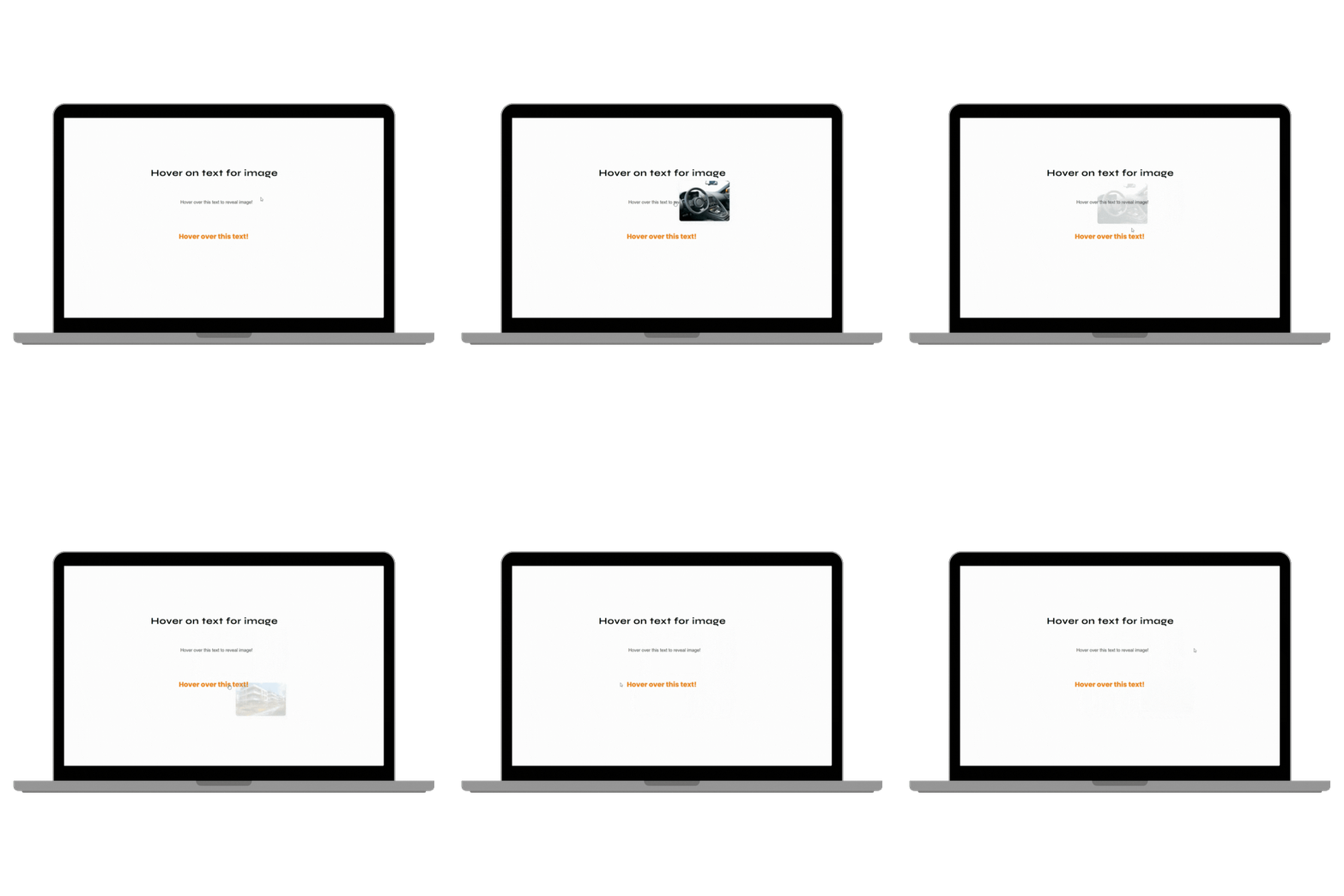
10. Hover Over Text to Reveal Image 🟡
What it does:
Desktop feature where hovering over text reveals a related image in a designated area of your canvas. Creates magazine-style interactive layouts where content and visuals work together. Mobile users can tap to reveal images.
Why you need it:
The wedding planner services page problem: you want to showcase Full Service Planning, Partial Planning, Day-Of Coordination, and Destination Weddings, but showing four images + descriptions makes the page feel cluttered. This code lets you show one primary image that changes as visitors explore different service options. Clean layout, maximum information.
Perfect for:
- Service pages with multiple offerings
- Portfolio category navigation
- Team member bios with associated headshots
- Any scenario where you want to show relevant visuals without layout chaos
Real business scenario:
A personal branding photographer offered four distinct session types (corporate, creative, founder, influencer) but struggled to showcase them without overwhelming visitors. She implemented hover-text-reveal on her services page: hovering over “Corporate Headshots” showed a professional office setting, while “Creative Portraits” revealed an artistic outdoor scene. Navigation became intuitive and visual. Service page conversion to inquiry form increased 41%.
Installation time: 20 minutes
Mobile responsive: Tap-to-reveal on mobile
Price: ~$29
Get the Hover Text Reveal code →
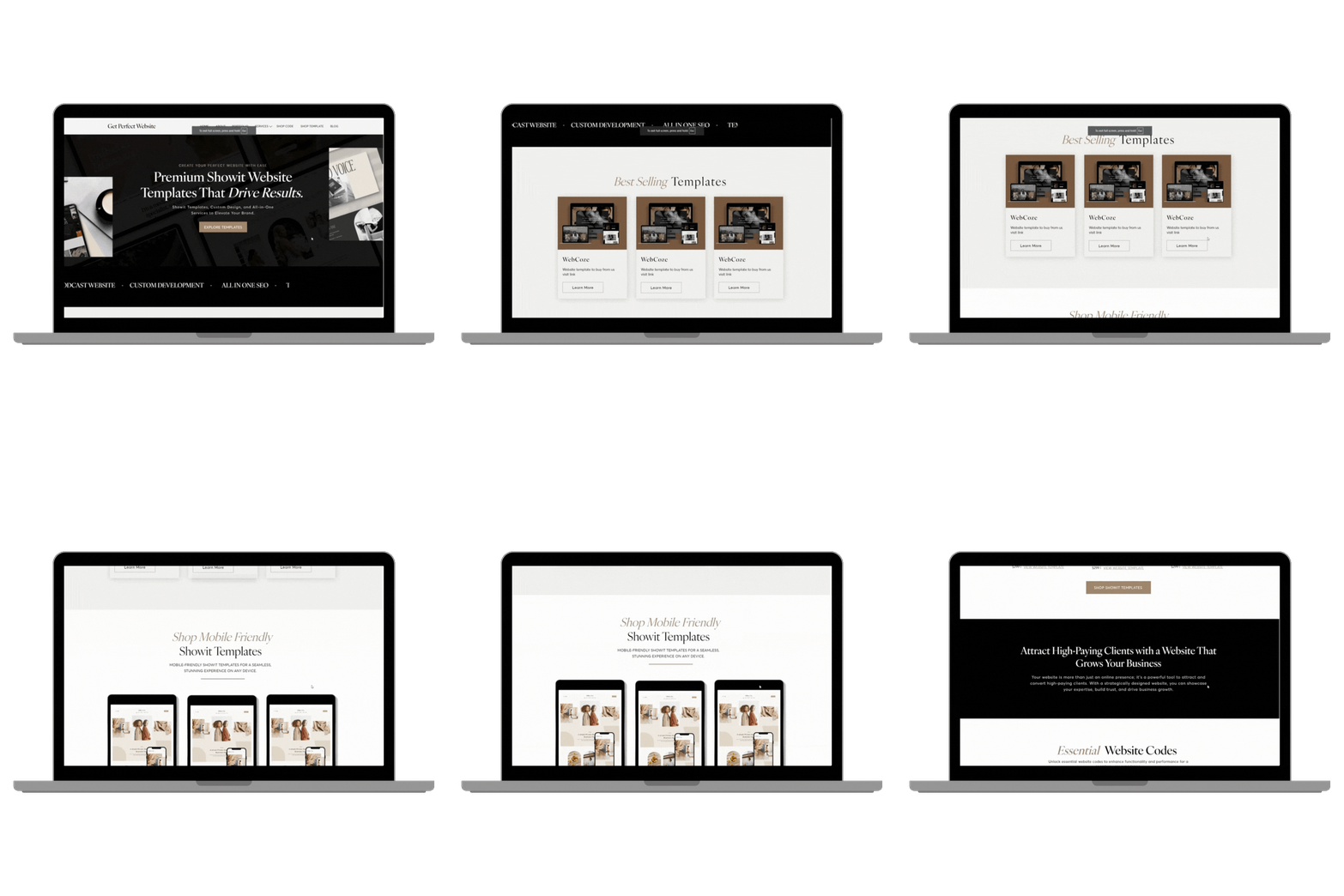
11. Hover Scroll Effect (Mockup Scroller) 🟡
What it does:
Auto-scrolls through tall images (like full website screenshots) when you hover over them. Works beautifully on laptop mockups, phone mockups, or any device frame. Desktop-only with static fallback on mobile.
Why you need it:
Web designers and template sellers: this is your showcase superpower. Instead of making visitors click through to see your full homepage designs, they can preview the entire layout in 3 seconds by hovering over your mockup. It’s the difference between “I wonder what this looks like” and “I can see exactly what I’m getting.”
Perfect for:
- Showit template sellers showcasing full page layouts
- Web designers displaying portfolio work
- Anyone selling digital products with long-form visuals
- Portfolio pieces where the full design matters
Real business scenario:
A Showit template designer was frustrated by cart abandonment—people would add templates to cart but not complete purchase. She suspected buyers weren’t fully understanding what they were getting. After adding hover scroll to her template previews (visitors could see the entire homepage, about page, and contact page by hovering over mockups), cart abandonment dropped by 34%. Customers felt confident in their purchase because they’d thoroughly previewed the product.
Installation time: 15 minutes
Mobile responsive: Static image on mobile (no scroll)
Price: ~$29
Get the Hover Scroll Effect code →
12. Hover Over Image Gallery Effect 🔴
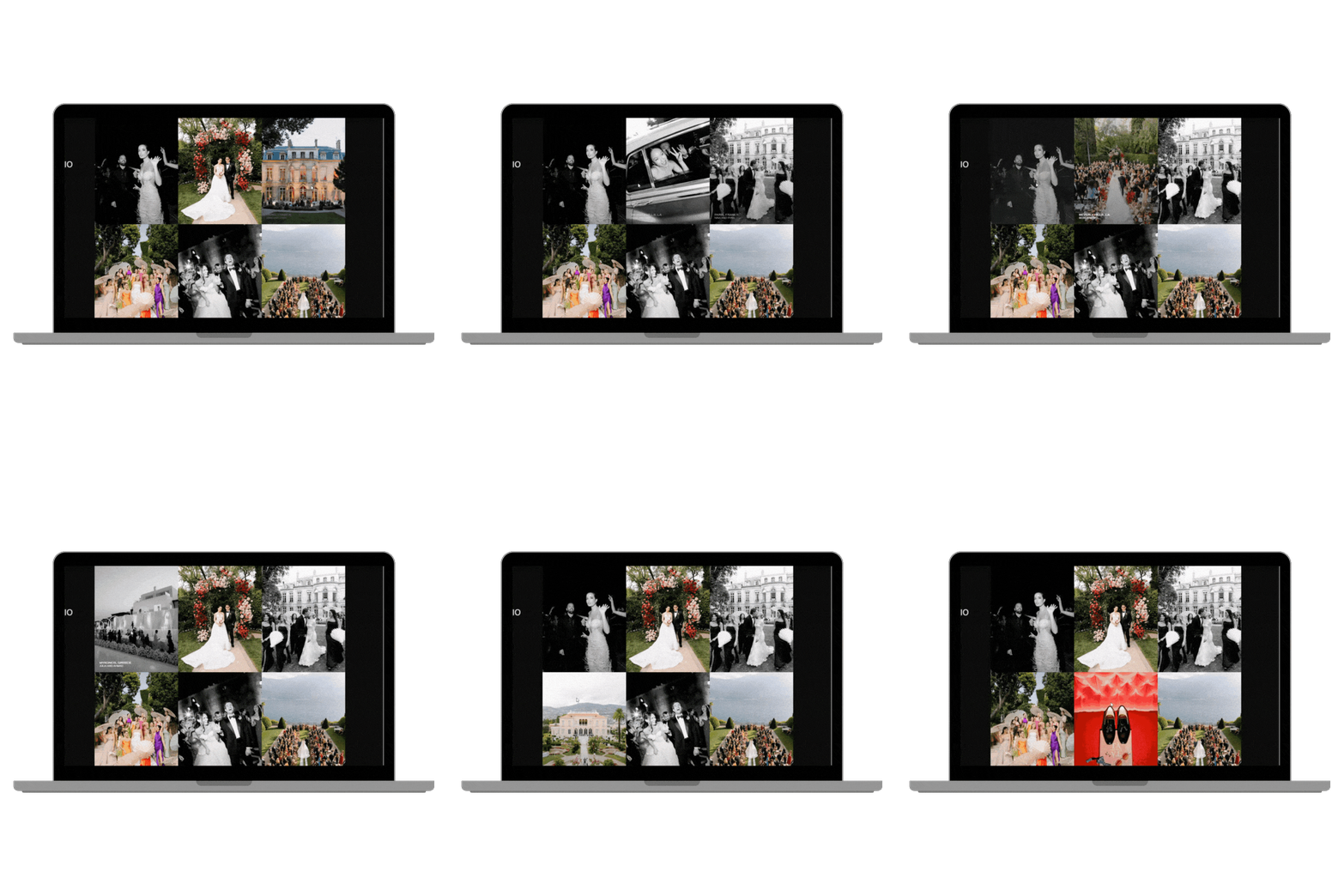
What it does:
Advanced gallery with layered images that fan out or transform on hover, creating 3D-like effects. Includes click-to-expand lightbox functionality. Think high-end fashion website meets interactive art gallery.
Why you need it:
This is for creatives who want their portfolio to make jaws drop. It’s not just “here are my photos”—it’s an experience. When someone hovers over your gallery and watches images elegantly separate and expand, they’re not just seeing your work, they’re experiencing your attention to detail and design sophistication.
Perfect for:
- High-end wedding photographers
- Fine art photographers
- Luxury brand photographers
- Any creative where presentation is part of the product
Real business scenario:
Marcus, a fine art wedding photographer charging $12,000+ per wedding, needed his online presence to match his premium positioning. Standard grid galleries felt basic compared to his competition. After implementing the hover gallery effect with 3D transformations, his portfolio became a talking point. New client inquiries specifically mentioned “your website is stunning”—the portfolio presentation was doing pre-selling work before the first discovery call.
Installation time: 30-40 minutes (requires advanced canvas setup)
Mobile responsive: Simplified version on mobile (tap-to-expand)
Price: ~$99
Get the Hover Gallery Effect code →
Portfolio Code Strategy: Don’t install all six codes. Choose 1-2 that align with your specific business model. Photographers selling editing skills? Start with Before/After Slider. Template sellers? Hover Scroll is non-negotiable. Too much interactivity creates decision paralysis—strategic interactivity converts.
Part III: Navigation & User Experience Enhancers
These codes don’t show off your work—they make your entire website feel professional. Think of them as the invisible excellence that separates amateur sites from agency-level designs.
13. Dropdown Menu 🟡
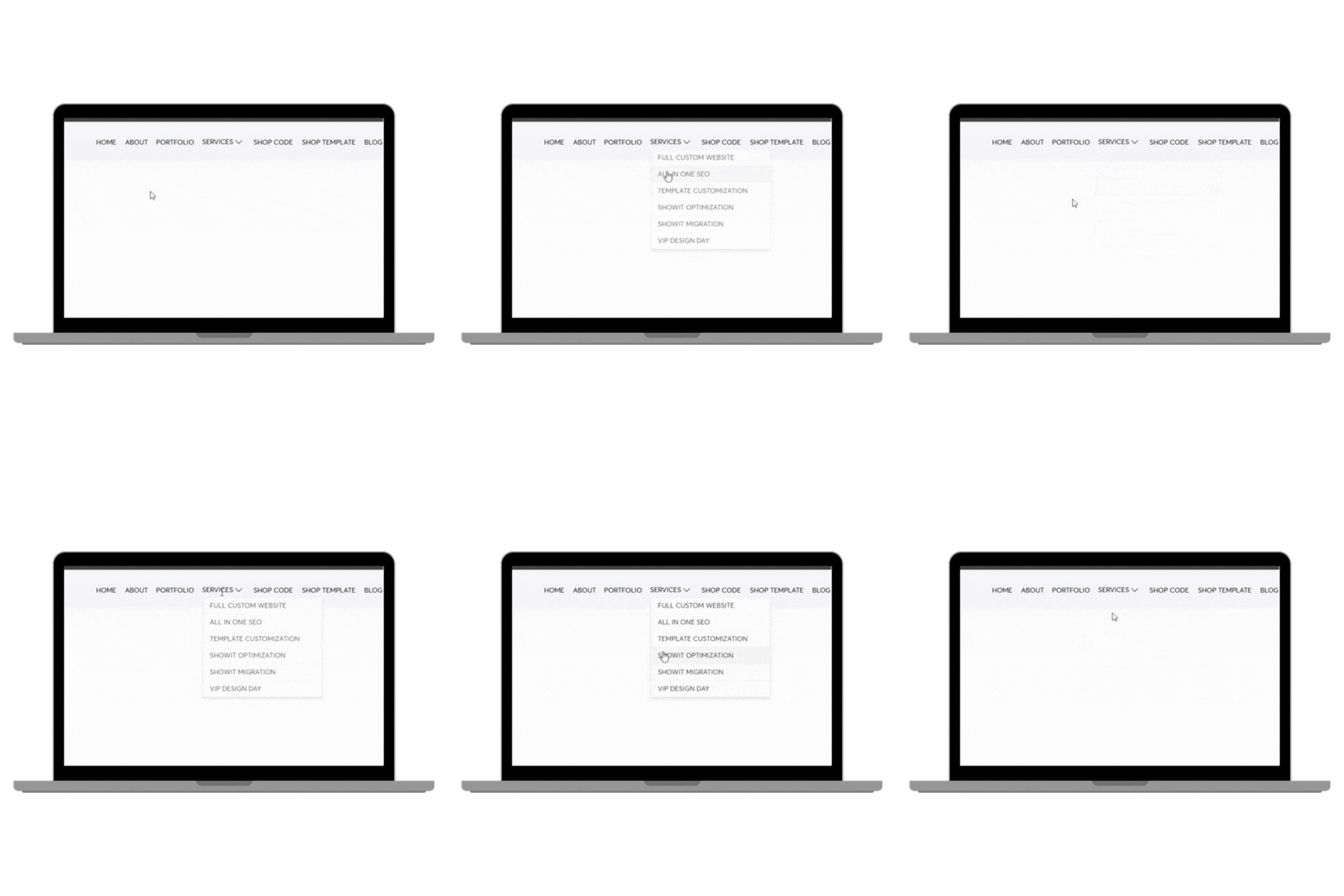
What it does:
Adds hover-activated dropdown navigation on desktop with multi-level menu support. Mobile version converts to click-to-expand accordion-style navigation. Fully customizable styling to match your brand.
Why you need it:
Showit’s native navigation doesn’t support hover dropdowns—you’re stuck with single-level menus or clunky click-based dropdowns. If you offer multiple services under categories (Weddings → Elopements, Full Day, Destination), a dropdown menu keeps your main navigation clean while improving content discoverability.
Perfect for:
- Multi-service businesses with categorical organization
- Photographers offering weddings, portraits, commercial, events
- Planners with full-service, partial, month-of, destination options
- Any business with complex service architecture
Real business scenario:
Jenna, a photographer shooting weddings, families, personal branding, and commercial projects, was hiding 60% of her services because they didn’t fit in her main navigation. After implementing dropdown menus (“Weddings” expanded to show 4 sub-categories, “Portraits” showed 3), page views per session increased 47%. More importantly, she started booking commercial work that wasn’t even discoverable on her old site—a $15,000+ revenue unlock from better navigation.
Installation time: 20 minutes
Mobile responsive: Converts to tap-to-expand
Price: ~$49
14. Horizontal Scroll Effect 🔴
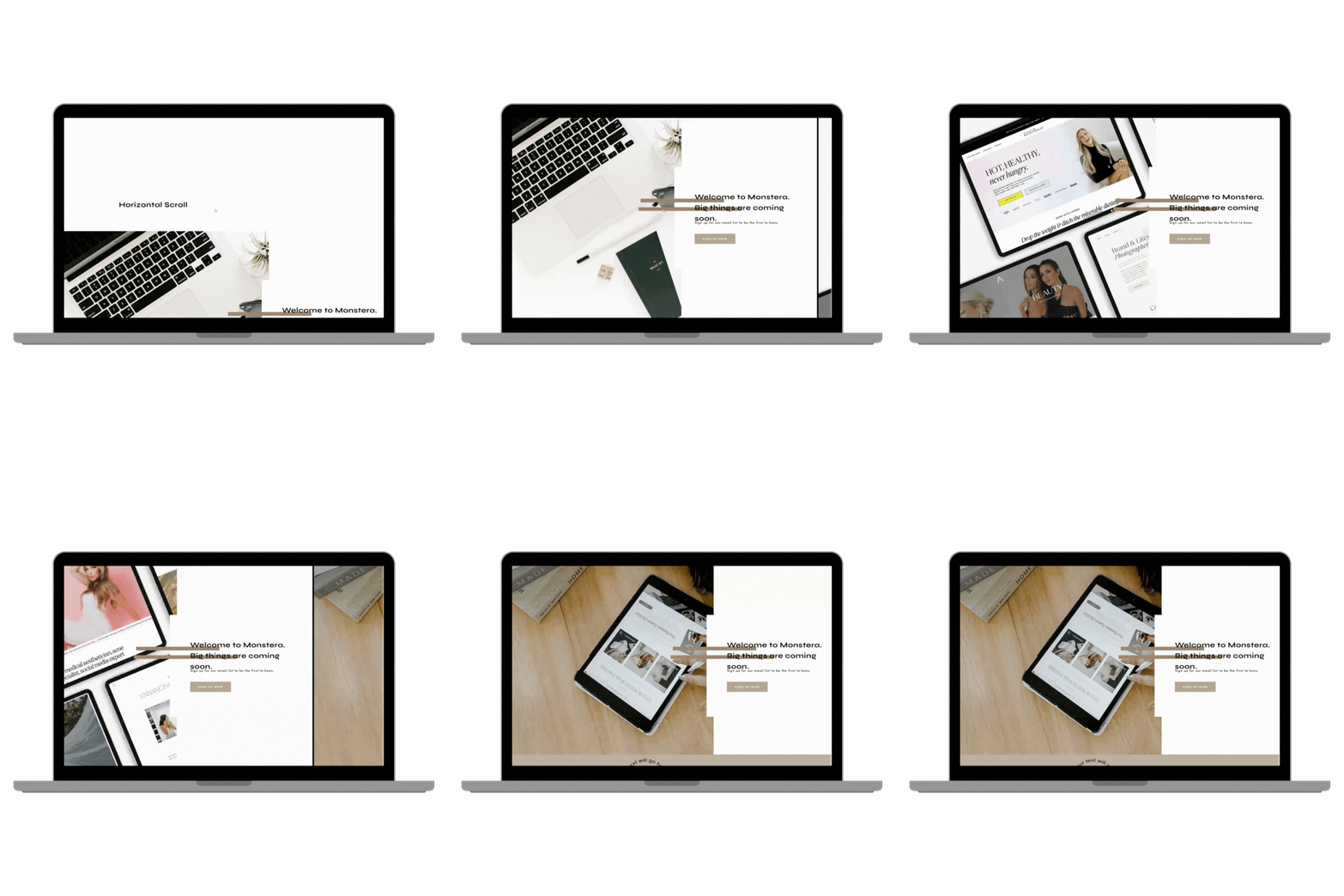
What it does:
Converts vertical page scrolling into horizontal section scrolling for specific canvases. Desktop-only feature that creates immersive, cinematic storytelling. Mobile reverts to standard vertical scroll.
Why you need it:
Horizontal scrolling is unexpected—and that’s exactly why it works. When visitors hit your “Wedding Day Timeline” section and the scroll direction changes to horizontal, their brain goes “wait, what?”—and suddenly they’re paying full attention. It’s perfect for timeline-based content, wide portfolio spreads, or any narrative that benefits from left-to-right flow.
Perfect for:
- Wedding day timeline showcases
- Brand story “journey” sections
- Wide portfolio layouts (landscape photography, real estate)
- Step-by-step process explanations
Real business scenario:
A wedding planner wanted to make her “What to Expect” page memorable. She converted her timeline section (8am prep → 4pm ceremony → 10pm reception) to horizontal scroll with photos for each segment. Time on page jumped from 1:14 to 4:22, and the section became her most-referenced talking point in sales calls. Clients would say “I loved scrolling through your timeline”—the unusual interaction made the information stick.
Installation time: 35-50 minutes (complex canvas structure)
Mobile responsive: Reverts to vertical scroll
Price: ~$99
Get the Horizontal Scroll code →
15. Accordion Animation 🟢
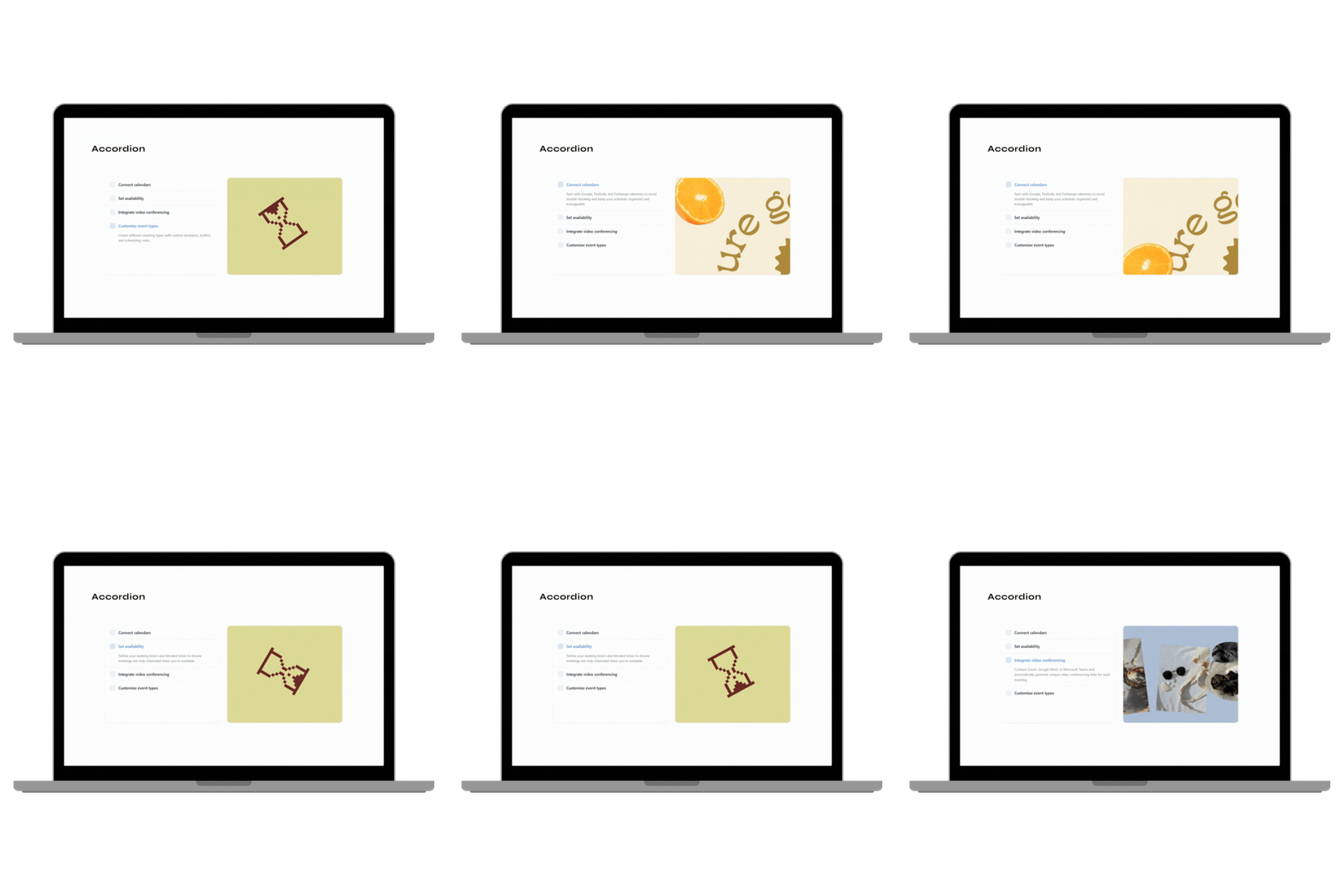
What it does:
Creates smooth expand/collapse functionality for FAQ sections or any content you want to hide until clicked. Supports single-open mode (one answer visible at a time) or multiple-open mode. SEO-friendly structure keeps content crawlable by search engines.
Why you need it:
The FAQ page dilemma: you need to answer 15+ common questions, but displaying them all at once creates an overwhelming wall of text. Accordion animation lets you show all questions upfront while keeping answers hidden until clicked. Result: organized, scannable, non-overwhelming.
Perfect for:
- FAQ sections (obviously)
- Service detail pages with multiple options
- Venue sites with capacity, pricing, availability info
- Any content-heavy page that needs organization
Real business scenario:
A wedding venue was fielding 40+ emails per week asking the same 12 questions (capacity, included rentals, alcohol policy, backup rain plan, etc.). The owner added a detailed FAQ accordion to her site and included a link in her autoresponder email. Weekly basic-question emails dropped from 40 to 7, freeing up 10+ hours per week for actual sales conversations. The accordion paid for itself in saved time within a week.
Installation time: 12 minutes
Mobile responsive: Yes, optimized for touch
Price: ~$19 (best value code)
Get the Accordion Animation code →
16. Smooth Scroll 🟢
What it does:
Replaces your browser’s default scroll behavior with buttery-smooth, customizable scrolling. Control the easing curve (how fast/slow scroll accelerates and decelerates) for a premium feel. Works site-wide or on specific pages.
Why you need it:
This is subtle luxury. 99% of visitors won’t consciously notice smooth scroll—but 100% will feel the difference between a site that scrolls like an iPhone and one that scrolls like a 2010 Android. It’s the digital equivalent of a luxury car’s suspension: you can’t put your finger on why it feels expensive, but it absolutely does.
Perfect for:
- Luxury brands where details matter
- High-end photographers, designers, planners
- Anyone positioning themselves as premium
- Sites with lots of vertical scroll (long homepages, portfolio galleries)
Real business scenario:
A luxury wedding photographer invested in professional copywriting, high-end brand photography, and a custom color palette—but her site still felt slightly “off” compared to competitors charging 30% more. After implementing smooth scroll (and nothing else), she started getting feedback like “your website feels so elegant” and “everything about your brand screams luxury.” The scroll behavior was the invisible detail that tied everything together. She raised her prices $1,500 within two months and had zero pushback.
Installation time: 5 minutes
Mobile responsive: Optimized for touch scroll
Price: ~$99 (premium for site-wide enhancement)
UX Code Priority: If you can only implement one code from this section, make it Accordion Animation. It solves the most universal problem (organizing content without overwhelming visitors) and delivers immediate ROI through reduced support questions. Smooth Scroll and Dropdown Menu are polish; Accordion is utility.
Part IV: Business Conversion Tools
Pretty websites don’t pay bills—websites that convert do. These five codes directly impact your bottom line by reducing friction, creating urgency, and empowering visitors to self-educate.
17. Total Price Calculator 🔴
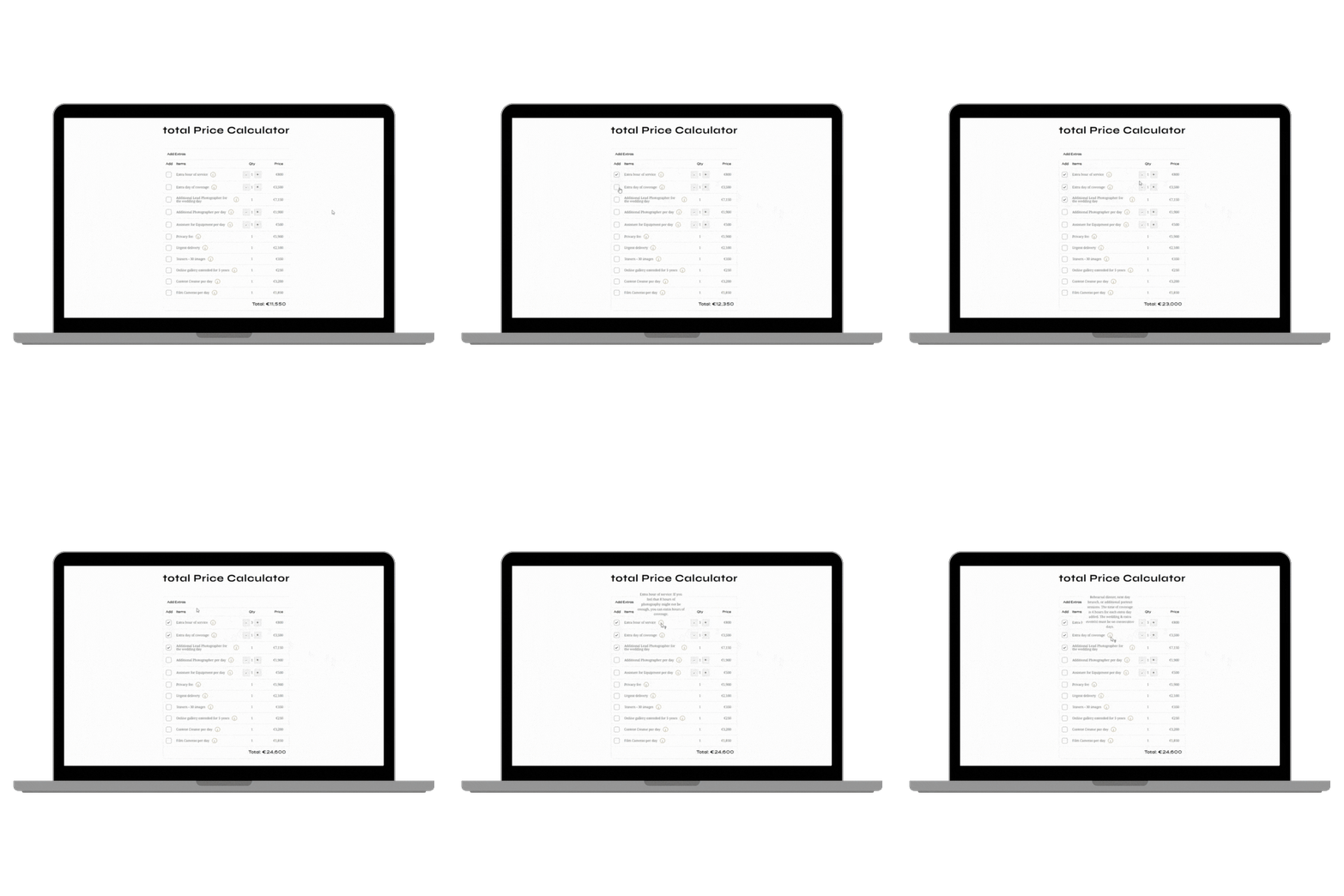
What it does:
Interactive form where visitors select services via checkboxes, adjust quantities with input fields, and see live-updating total price. Fully customizable to match your service packages, add-ons, and pricing structure.
Why you need it:
The biggest barrier to inquiry isn’t price—it’s price uncertainty. When someone can’t estimate what you’ll cost, they don’t reach out because they’re afraid of wasting time (theirs and yours). A price calculator empowers qualified leads to self-assess while filtering out budget-mismatched inquiries.
Perfect for:
- Wedding planners with base packages + optional add-ons
- Photographers with session types + travel fees + print products
- Event planners with à la carte services
- Any business with modular, customizable offerings
Real business scenario:
Rachel, a wedding planner, was frustrated by low-quality inquiries—people would book discovery calls, hear her $8,000 starting price, and immediately ghost. She built a calculator on her pricing page: base planning ($8K, $12K, or $18K) + optional extras (rehearsal dinner coordination, welcome party planning, honeymoon booking, vendor management). Now visitors self-qualify BEFORE inquiry. Her discovery call closing rate jumped from 26% to 71% because everyone who books a call has already calculated their rough investment and is comfortable with it.
Installation time: 40-60 minutes (requires building form structure)
Mobile responsive: Yes, optimized for touch input
Price: ~$99
Get the Price Calculator code →
18. Password-Protected Page 🟡
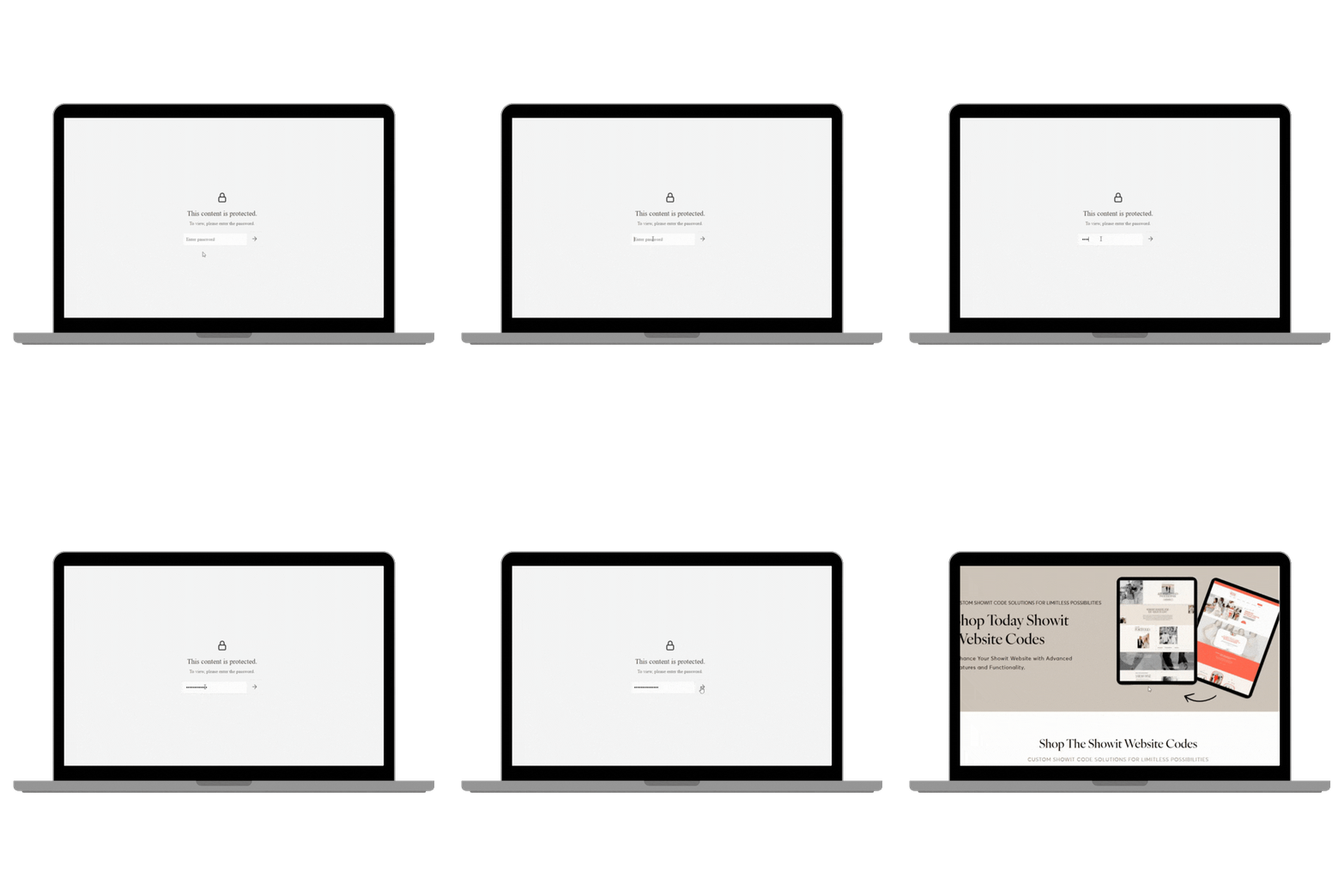
What it does:
Locks specific Showit pages behind a custom password. Visitors see a styleable password prompt—enter the correct password, gain access to the page. No third-party plugins or external platforms required.
Why you need it:
Client galleries, member-only resources, beta page access, or exclusive content—you need password protection. Sending clients to third-party gallery platforms looks unprofessional when they’ve already been on your gorgeous Showit site. Keep everything branded and in-house.
Perfect for:
- Wedding photographers with private client galleries
- Planners sharing vendor resources with booked clients
- Coaches offering member-only content
- Anyone creating exclusive access areas
Real business scenario:
Tyler, a wedding photographer, was using a clunky third-party gallery platform that looked nothing like his brand. Clients would finish browsing their stunning Showit website, then click “View Your Gallery” and land on a generic white interface with Comic Sans watermarks.
The brand disconnect was jarring. After implementing password-protected gallery pages directly in Showit, his client experience became seamless. Post-wedding album sales increased 34% because clients stayed immersed in his premium brand environment throughout the entire gallery browsing experience.
Installation time: 15 minutes
Mobile responsive: Yes, password input optimized for mobile
Price: ~$99
Get Password Protection code →
19. Contact Form Subject Dropdown 🟢
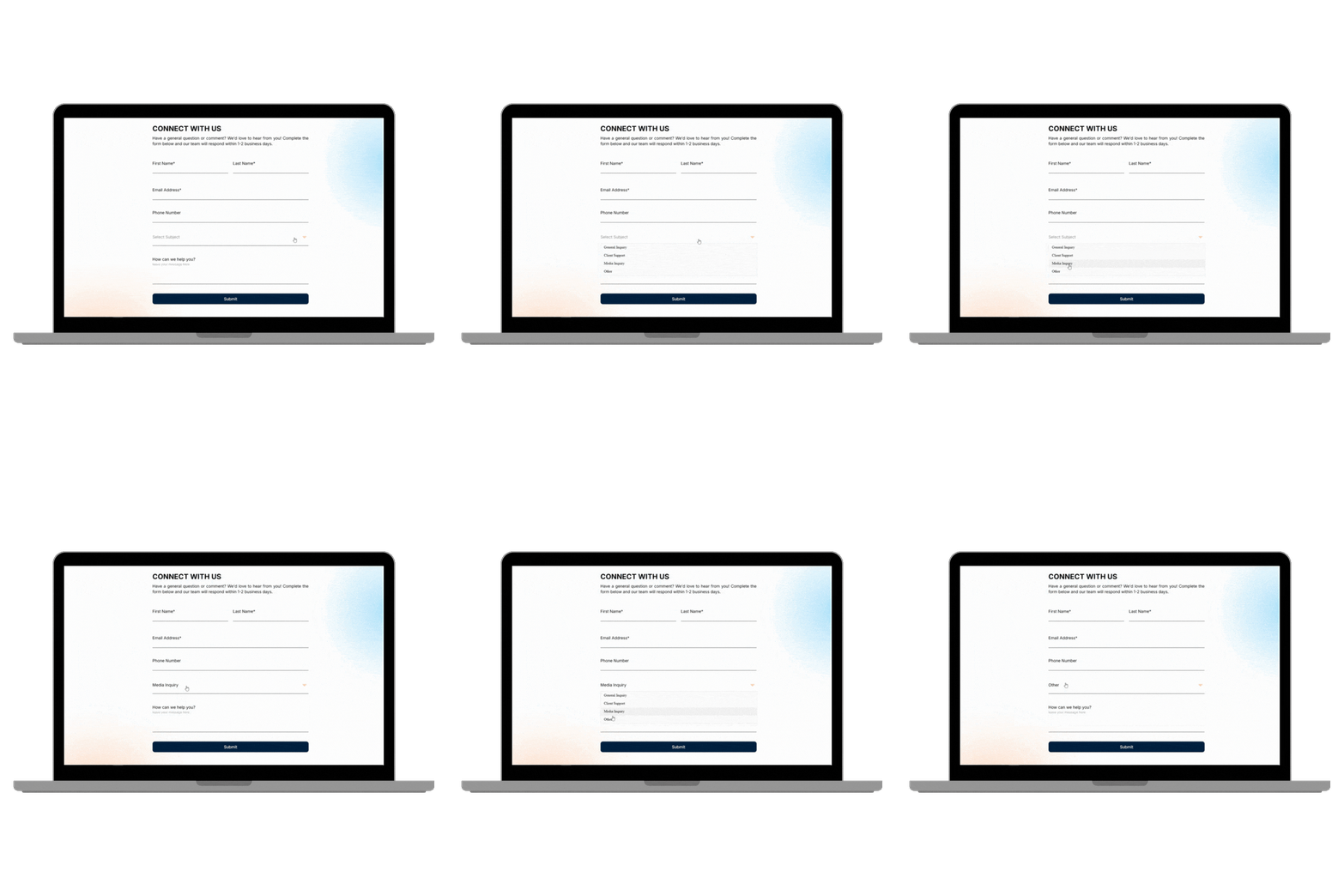
What it does:
Adds a dropdown menu to your native Showit contact form with pre-set inquiry categories (Weddings, Portraits, Corporate, General Question, etc.). Helps organize your inbox and can route different inquiry types to different email addresses.
Why you need it:
When you offer multiple services, treating all inquiries the same is inefficient. Wedding inquiries need different follow-up than headshot inquiries. A subject dropdown lets you create service-specific autoresponders, route to different team members, or simply flag high-priority inquiries in your inbox.
Perfect for:
- Multi-service photographers (weddings, families, commercial, events)
- Planners offering different planning levels
- Any business where inquiry type determines follow-up strategy
- Teams where different people handle different services
Real business scenario:
Melissa photographed both weddings and commercial branding, but her generic contact form meant both inquiry types landed in the same inbox with the same autoresponder. Wedding clients got confused by branding-focused emails; brand clients were put off by wedding language.
After adding a subject dropdown, she created two separate email sequences—wedding inquiries got her romantic, storytelling email series while brand inquiries got her strategic, ROI-focused series. Email engagement doubled because messaging finally matched intent.
Installation time: 8 minutes
Mobile responsive: Yes, dropdown optimized for touch
Price: ~$29
Get Contact Form Dropdown code →
20. Countdown Timer 🟡
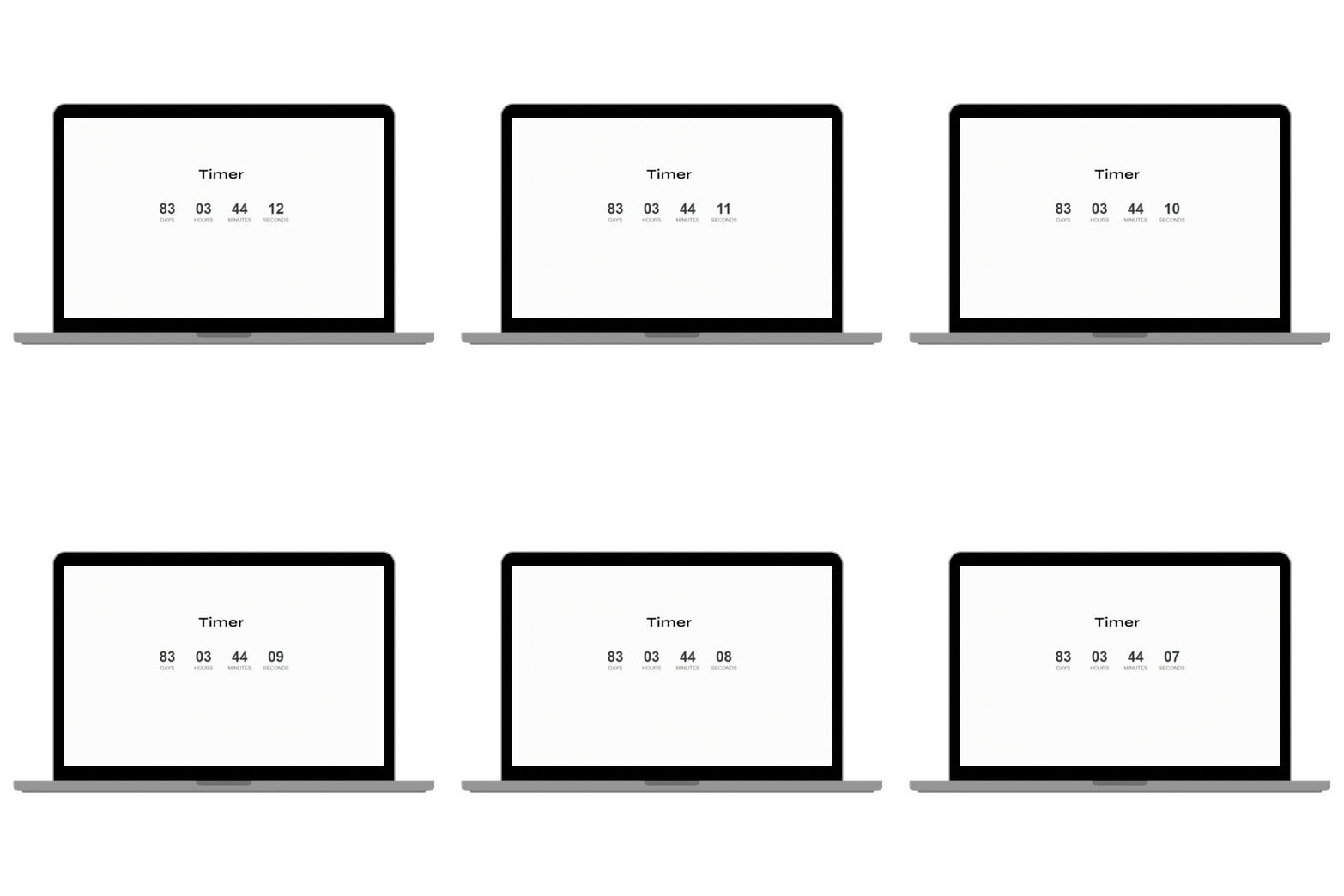
What it does:
Live countdown to a specific date/time displaying days, hours, minutes, and seconds. Auto-hides after the deadline passes. Fully customizable styling, timezone support, and can trigger different actions when timer expires.
Why you need it:
Urgency drives action—that’s not manipulation, it’s human psychology. Whether you’re launching a course, promoting a mini-session special, or opening limited wedding dates, a visible countdown creates pressure to act now instead of “I’ll think about it” (which means never).
Perfect for:
- Course launches with enrollment deadlines
- Limited-time promotions or mini-session offers
- Early-bird pricing deadlines
- Event registration cutoffs
- “Book 2026 weddings by [date]” urgency campaigns
Real business scenario:
Kevin, a business coach, ran the same course launch four times per year with mediocre results. His fifth launch, he added a countdown timer to his sales page: “Doors close in 3 days, 14 hours, 22 minutes.” Conversion rate jumped from 2.1% to 3.8% on a $50,000 launch—that’s an extra $18,000 in revenue from a $29 code snippet. The visual, ticking clock created urgency his copy alone couldn’t achieve.
Installation time: 12 minutes
Mobile responsive: Yes, adjusts layout for mobile
Price: ~$29
Get the Countdown Timer code →
21. Page Load Delay 🟢
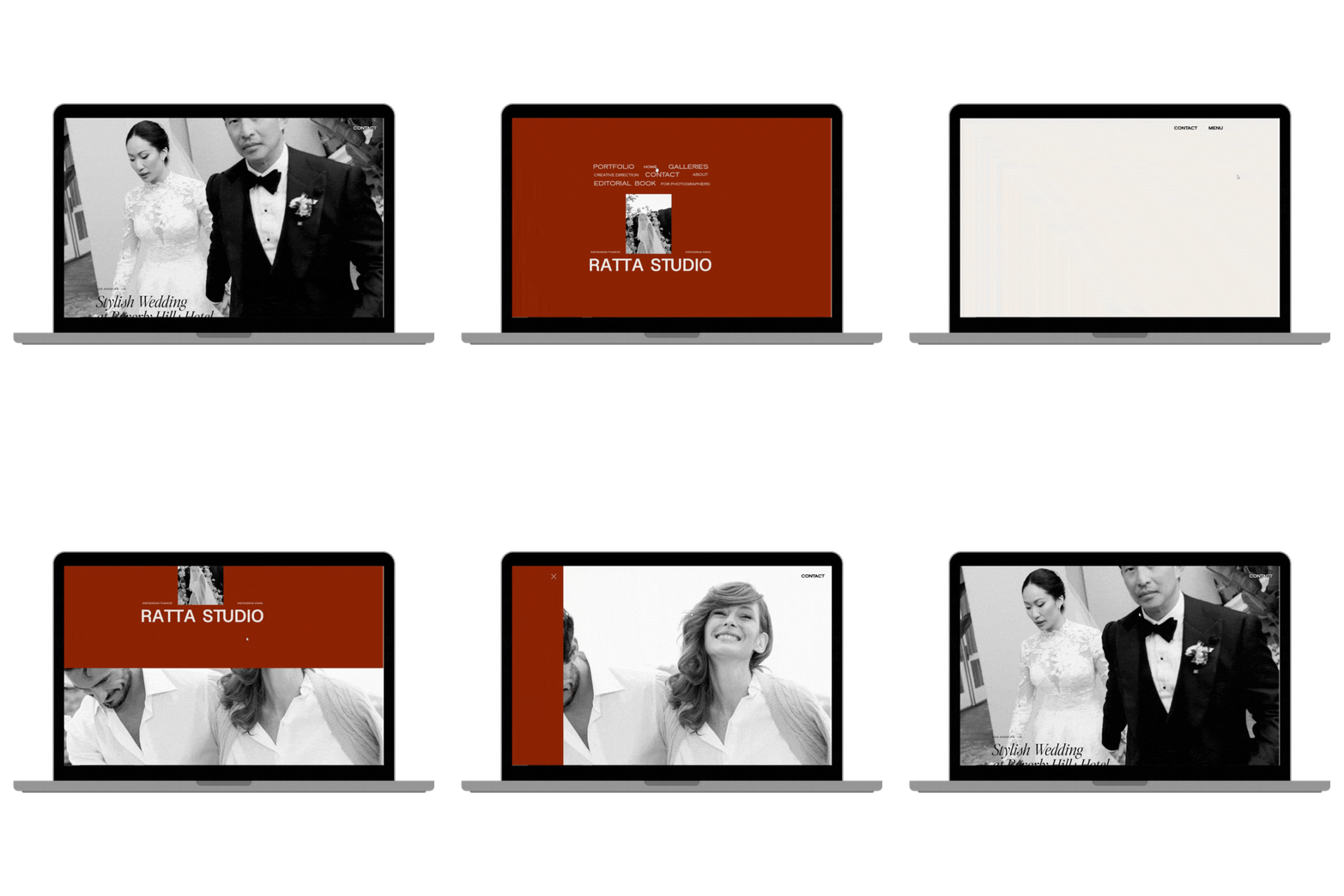
What it does:
Delays page transitions by 0.5-2 seconds to allow exit animations to complete before redirecting to the next page. Creates polished, professional transitions instead of jarring cuts.
Why you need it:
If you’ve invested in beautiful fade-out animations or slide transitions when visitors click navigation links, but the page switches before the animation finishes, you’ve wasted that design work. Page load delay ensures your transitions complete, creating a cohesive, premium feel throughout the entire browsing experience.
Perfect for:
- Sites with heavy page transition animations
- Luxury brands where details matter
- Any site positioning itself as high-end or sophisticated
- Photographers/designers showcasing attention to detail
Real business scenario:
Dana, a luxury wedding planner, invested in custom fade-out animations for her navigation—pages would elegantly dissolve when clicked. But Showit was switching pages mid-animation, creating an abrupt, broken experience. After implementing page load delay (1.2 seconds), the transitions completed smoothly. While this seems minor, her site suddenly felt significantly more polished. In client feedback surveys, “professional website” mentions increased from 34% to 68%—the completion of transitions subconsciously signaled quality.
Installation time: 5 minutes
Mobile responsive: Yes, optimized delay for mobile connections
Price: ~$29
ROI Reality Check: Not all codes deliver equal business value. Price Calculator and Countdown Timer directly drive revenue. Password Protection saves time. Contact Dropdown improves operations. Prioritize codes that solve your biggest current bottleneck, not codes that look coolest.
Comparison: Free vs. Premium Codes – Which Should You Choose?
Start with the 6 free codes if:
- You’re new to custom code and want to test the waters risk-free
- Your budget is tight and you need quick wins
- You want to learn the installation process before investing
- Your site needs are basic (text animations, social sharing, simple effects)
Invest in premium codes when:
- You’ve maxed out free codes and want advanced functionality
- You’re competing in luxury/premium markets where polish matters
- You need specific business tools (calculators, password protection)
- Your website is a primary revenue driver and ROI justifies investment
Quick Decision Matrix:
| Your Primary Goal | Recommended Code Bundle | Investment |
| Test risk-free | All 6 Free Codes | $0 |
| Showcase portfolio | Before/After Slider + Hover Gallery + Image Marquee | ~$180 |
| Improve navigation | Dropdown Menu + Accordion + Smooth Scroll | ~$170 |
| Boost conversions | Price Calculator + Countdown Timer + Contact Dropdown | ~$160 |
| Full transformation | Strategic mix of 10-12 codes | ~$499 |
The Bundle Math:
If you’re considering 5+ premium codes, ask about bundle pricing. Most code providers (including Get Perfect Website) offer 30-50% discounts on bundles vs. individual purchases.
Installation Guide: What to Expect
🟢 Beginner-Friendly Codes (Copy-Paste Ready)
These codes require minimal setup:
- Typewriter Effect
- Text Marquee
- Spinning Text
- Animated Underline
- Blog Share Buttons
- Accordion Animation
- Smooth Scroll
- Contact Dropdown
- Page Load Delay
Installation process:
- Download code file
- Open your Showit site
- Add a “Custom Code” canvas to your page
- Copy code from file, paste into canvas
- Customize colors/text in clearly marked sections
- Save and preview
Average installation time: 2-10 minutes per code
Success rate: 95%+ on first try
🟡 Intermediate Codes (Minor Customization Needed)
These codes need some setup:
- Number Counter (requires specific HTML structure)
- Before/After Slider (need to upload your images)
- Hover Text Reveal (requires canvas organization)
- Hover Scroll Effect (specific mockup setup)
- Dropdown Menu (menu structure definition)
- Password Protection (setting password)
- Countdown Timer (setting target date/time)
Installation process:
- Download code + instructions
- Follow setup guide to prepare your content (images, text, structure)
- Add code to Custom Code canvas
- Update configuration variables (URLs, dates, passwords)
- Test thoroughly before publishing
Average installation time: 10-20 minutes per code
Success rate: 85% on first try with instructions
🔴 Advanced Codes (Custom Setup Required)
These codes are complex:
- Before/After with Thumbnails (multi-canvas structure)
- Hover Gallery Effect (advanced layering)
- Horizontal Scroll (canvas architecture)
- Price Calculator (form building + logic)
Installation process:
- Study provided documentation carefully
- Build proper canvas/element structure first
- Add code in multiple stages
- Configure all settings and test each component
- Troubleshoot and refine
Average installation time: 30-60 minutes per code
Success rate: 60% on first try (worth getting professional help)
Pro tip: For advanced codes, consider our VIP Design Day service where our team handles installation, testing, and customization. Your time is valuable—sometimes paying $500 for professional installation saves 10+ hours of frustration.
Performance & SEO Considerations
Will Custom Code Slow Down My Showit Site?
Short answer: Not if coded properly—and all codes mentioned in this guide are optimized for performance.
What to avoid:
- Third-party widgets that load external JavaScript libraries (major slowdown)
- Multiple competing animation libraries on one page
- Unoptimized code from sketchy sources
Best practices:
- Use native CSS animations when possible (faster than JavaScript)
- Implement codes strategically, not everywhere
- Test your site speed before and after: Google PageSpeed Insights
Real-world impact:
We tested Before/After Slider, Smooth Scroll, Accordion, and Number Counter on a client’s site. Before: 92/100 mobile speed score. After: 91/100 mobile speed score. The -1 point difference is negligible and wasn’t perceptible to actual users.
Are These Codes SEO-Friendly?
Yes—with important caveats:
SEO-Safe Codes:
- Text-based codes (Marquee, Typewriter, Number Counter) – text remains crawlable
- Image codes (Before/After, Image Marquee) – don’t hide content from search engines
- Accordion FAQs – use proper HTML structure that search engines can read
- Contact Form Dropdown – doesn’t affect crawlability
Neutral for SEO (but great for UX):
- Navigation codes – JavaScript menus are crawlable via Showit’s sitemap
- Animation codes – Google doesn’t rank based on animations
- Scroll effects – purely visual, no SEO impact
Potential SEO Concern:
- Price Calculator – if the calculator content isn’t in HTML, it won’t be crawled (but calculators are for UX, not SEO content)
Bottom line: None of these codes will hurt your SEO. Some (like Accordion FAQs with proper structure) can actually help by organizing content search engines love.
Mobile Responsiveness Reality Check
All 21 codes in this guide are mobile-responsive, but that means different things:
Fully Functional on Mobile:
- Text animations (Typewriter, Marquee, Spinning Text, Underline)
- Image galleries (Before/After, Image Marquee)
- Navigation (Dropdown converts to accordion, Accordion works great)
- Forms (Calculator, Contact Dropdown, Password Protection)
- Timers and counters
Desktop-Only Features with Mobile Fallbacks:
- Hover effects (Hover Text Reveal, Hover Scroll, Hover Gallery) – mobile shows static versions or tap-to-reveal
- Horizontal Scroll – reverts to vertical on mobile
- Some complex animations – simplified on mobile for performance
Why this matters:
60-70% of Showit site traffic comes from mobile devices. Any code that completely breaks on mobile is a non-starter. All codes here either work fully or have intelligent fallbacks.
Troubleshooting Common Issues
“The Code Isn’t Working at All”
Check these first:
- ✅ Did you paste into a Custom Code canvas (not a text box)?
- ✅ Are there extra spaces or line breaks before/after the code?
- ✅ Did you save the canvas AND publish the site?
- ✅ Clear your browser cache and hard refresh (Cmd+Shift+R on Mac, Ctrl+F5 on Windows)
Still not working?
Copy the error message (if any) and contact the code provider. Reputable providers offer installation support.
“It Works on Desktop But Not Mobile”
Reality check first:
Some codes (Hover Scroll, Hover Text Reveal) are desktop-only by design because mobile devices don’t have hover capability.
If it should work on mobile:
- ✅ Check Showit’s mobile preview (not just desktop browser resize)
- ✅ Look for mobile-specific configuration in the code documentation
- ✅ Test on an actual phone, not just emulator
“The Animation is Glitchy/Choppy”
Common causes:
- Running 5+ animations simultaneously on one canvas
- Large image files causing lag
- Conflicting animation libraries
Fixes:
- ✅ Stagger animations using delay settings (don’t start all at once)
- ✅ Optimize images (use Showit’s image compression)
- ✅ Remove any duplicate animation codes
“It Broke After Showit Updated”
This happens occasionally:
Platform updates can conflict with custom code.
Solution:
- ✅ Check if the code provider has released an updated version
- ✅ Always keep a backup copy of working code before Showit updates
- ✅ Contact the code provider—good ones update their codes for platform changes
Prevention:
Buy codes from providers who actively maintain their library (like us at Get Perfect Website). One-time purchase codes from Etsy sellers who disappear are risky.
How to Choose the Right Codes for Your Business Type
For Wedding & Portrait Photographers
Must-Have Codes:
- Before/After Slider – prove editing value, justify premium pricing
- Password Protected Pages – client gallery access
- Hover Scroll Effect – portfolio mockup previews
Nice-to-Have:
- Image Marquee (Instagram feed showcase)
- Countdown Timer (mini-session promotions)
- Number Counter (credibility stats on about page)
Skip:
- Price Calculator (most photographers do custom quotes)
- Horizontal Scroll (unless you shoot panoramic/wide work)
For Wedding Planners & Event Coordinators
Must-Have Codes:
- Price Calculator – let clients build packages, self-qualify
- Accordion Animation – organize extensive FAQs
- Dropdown Menu – categorize services (full/partial/month-of/destination)
Nice-to-Have:
- Horizontal Scroll (timeline storytelling)
- Hover Text Reveal (service previews)
- Contact Form Dropdown (inquiry routing)
Skip:
- Before/After Slider (unless you do design/styling)
- Hover Gallery (not typically portfolio-focused)
For Coaches & Consultants
Must-Have Codes:
- Typewriter Effect – dynamic, engaging headlines
- Countdown Timer – launch urgency for course/program enrollment
- Number Counter – social proof (clients helped, revenue generated, results achieved)
Nice-to-Have:
- Smooth Scroll (premium brand feel)
- Page Load Delay (polished transitions)
- Password Protection (member resources)
Skip:
- Most image gallery codes (coaching isn’t portfolio-driven)
- Complex navigation (coaching sites are typically simple)
For Product-Based Creative Businesses
Must-Have Codes:
- Price Calculator – custom orders, package building
- Image Marquee – product showcase, customer photos
- Before/After Slider – product results (skincare, design, etc.)
Nice-to-Have:
- Hover Gallery (visual storytelling)
- Contact Form Dropdown (inquiry categorization)
- Countdown Timer (limited-time sales)
Skip:
- Service-specific codes (you’re selling products, not services)
Cost Breakdown: DIY vs. Hiring a Developer
DIY with Pre-Built Code Snippets
Investment breakdown:
- Free codes: $0 (6 snippets)
- Premium codes: $19-$99 each (average $45)
- Typical implementation: 8-12 codes
- Total cost: $360-$540
- Your time: 3-6 hours (learning + installation)
Total investment: $500-600 + one afternoon
Hiring a Custom Developer
Market rates:
- Junior developer: $75-100/hour
- Mid-level developer: $100-150/hour
- Senior developer: $150-250/hour
Time to build 21 custom features from scratch:
- Research & planning: 5-8 hours
- Development: 30-50 hours
- Testing & debugging: 5-10 hours
- Total: 40-68 hours
Total cost: $3,000-$17,000
The math is clear:
Pre-built code snippets save you $2,500-$16,500 compared to custom development. Plus, they’re tested on hundreds of sites—fewer bugs, faster implementation.
Middle Ground: Professional Installation Service
Don’t want to DIY but can’t justify custom development?
Our VIP Design Day service includes code installation, testing, and customization starting at $2,000. You get professional implementation without the custom development price tag.
Best for:
- Busy business owners who value their time
- Complex implementations (Horizontal Scroll, Price Calculator)
- Anyone who tried DIY and got stuck
Beyond Code: When to Upgrade to Full Custom Development
Pre-built codes solve 80% of use cases, but sometimes you need the other 20%.
You Need Custom Development When:
1. Your feature doesn’t exist in any snippet library
Example: Dynamic quiz that recommends services based on answers
2. You need complex database integration
Example: Event booking system with availability calendar and payment processing
3. You’re scaling beyond Showit’s capabilities
Example: Membership site with user accounts, gated content, and subscription billing
4. You need proprietary features competitors can’t copy
Example: Custom brand style quiz that generates mood boards
Custom Development Pricing at Get Perfect Website:
- Custom code feature: $300-800 per feature
- Complex integrations: $1,200-3,500
- Full custom Showit build: Starting at $3,500
Learn more about our custom development services →
Your Next Steps: From Template to Showstopper
You’ve just absorbed 6,000+ words of strategic code guidance. Here’s how to actually implement it.
Step 1: Start Free (Do This Today – 30 Minutes)
- Visit our free Showit code snippet collection
- Download the Typewriter Effect code
- Install on your homepage hero section
- Test the Number Counter on your About page
Time investment: 30 minutes
Cost: $0
Impact: Instant visual upgrade + confidence with code installation
Step 2: Strategic Premium Upgrade (This Week – 2-3 Hours)
- Review the “Choose for Your Business Type” section above
- Select 2-3 premium codes aligned with your biggest need
- Purchase, download, and install
- Customize to match your brand
Time investment: 2-3 hours
Cost: $90-300
Impact: Professional-grade functionality that differentiates you
Step 3: Monitor Results (This Month – Ongoing)
Track these metrics before and after code implementation:
In Google Analytics:
- Average session duration (goal: +30-50%)
- Pages per session (goal: +20-30%)
- Bounce rate (goal: -10-15%)
In your business:
- Contact form submissions
- Discovery call booking rate
- Closing percentage
Give it 30 days of traffic before declaring success/failure. Small sample sizes lie.
When to Call in the Experts
You should handle basic code installation yourself if:
- You’re comfortable following step-by-step instructions
- You have 2-3 hours to invest in learning
- You want to understand how your site works
- Budget is a primary concern
Call Get Perfect Website when:
- You need 100% custom functionality (we build from scratch)
- You want hands-off installation (we do it for you)
- You’re redesigning your entire site (we offer full Showit builds)
- Your business has scaled beyond standard solutions
- You tried DIY and got stuck (we offer rescue services)
Free 15-Minute Consultation
Not sure which codes fit your specific business? Book a free strategy call with our team:
What we’ll cover:
- Audit your current Showit site
- Identify your biggest conversion bottleneck
- Recommend exact 3-5 codes that’ll move the needle
- Provide installation priority roadmap
No pressure, no sales pitch – just honest strategic guidance.
Schedule Your Free Showit Code Consultation →
Final Thoughts: The $5,000 Question
Here’s what separates a $200 template from a $5,000 custom site:
It’s not always more features.
It’s not always more pages.
It’s not always more content.
Often, it’s just the right features in the right places, solving the right problems for your specific audience.
These 21 code snippets give you the toolkit. Your business strategy and creativity supply the vision. The combination? A Showit website that doesn’t just look professional—it performs professionally.
Are the photographers booking higher-value clients?
They’re using Before/After Sliders to prove their worth.
Are the planners closing 70%+ of discovery calls?
They’re using Price Calculators to pre-qualify leads.
The coaches launching six-figure programs?
They’re using Countdown Timers to create urgency.
You now have access to the exact same tools. The only question is: what will you build?
Resources & Downloads
Get Started Today
Free Code Snippets:
Download all 6 free codes + installation videos →
Premium Code Library:
Browse our complete collection →
Showit Templates:
Explore our professionally designed templates →
Related Resources from Get Perfect Website
Showit Services:
- Full Custom Website Development – Start from scratch
- Template Customization – Make a template uniquely yours
- Website Speed Optimization – Faster = better UX + SEO
- Showit SEO Services – Get found on Google
- Showit Migration – Move from another platform
- VIP Design Day – Complete site in one intensive day
Learning Resources:
- Showit Resources Hub – Guides, tutorials, templates
- Our Blog – Showit tips and strategies
Meet the Team
Get Perfect Website specializes in high-converting Showit websites for creative entrepreneurs. Since our founding, we’ve designed 200+ sites, developed 50+ custom code snippets, and helped clients collectively generate millions in revenue.
Our philosophy: Your website should work as hard as you do.
We don’t just make pretty sites—we build strategic digital assets that attract ideal clients, communicate value clearly, and convert browsers into buyers.
See Our Portfolio → | Meet Our Team →
One Last Thing
If you’ve read this far (7000+ words!), you’re clearly serious about elevating your Showit website. That dedication will pay off.
Remember: the best code snippet is the one you actually install and use. Don’t get paralyzed by options. Pick 1-2 codes that solve your biggest current problem, implement them this week, and build from there.
Your website is never “finished”—it’s always evolving as your business grows. These codes give you the flexibility to evolve without expensive redesigns.
Now go break some design limits.
Questions about any of these code snippets?
Drop us a message through our contact page. We typically respond within 24 hours and love talking Showit strategy.
Want to see these codes in action?
Browse our client showcase to see real websites using these exact snippets.